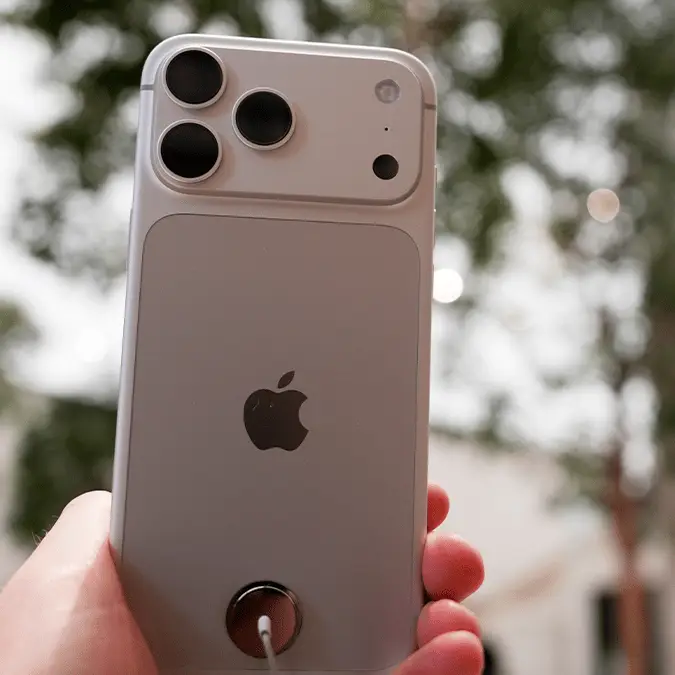
iOS 27 draining iPhone battery for users but there's settings you can change for a quick fix


It happens every time there's a new update and the launch of iOS 27 has proved to be no different, with iPhone owners once again complaining that their batteries are draining faster than usual.
It's something that Apple is well aware of, to the point where advice given by the tech giant amounts to little more than waiting for the problem to fix itself, yet people are still seeking out additional tips to help preserve their phones in the meantime.
You might be experiencing it to an even greater scale if you've got an older phone – especially as Apple decided to keep the update cut off the same as iOS 26 to many people's surprise – as the performance demands of the new update could strain an iPhone that could be 7 years old in some cases.
Thankfully there are a number of ways that you can improve your iPhone's battery life in the short- and long-term, meaning that you can avoid the pain of running out of juice when you're out and about.
Ways you can improve your iPhone's battery life
As reported by ZDNET, there are actually a number of settings you can tweak to improve your iPhone's battery life immediately, alongside some more permanent changes that you could also consider.
Display settings
One of the easiest ways to improve your battery life is to tweak your display settings — as the screen is arguably the biggest factor when it comes to your phone's battery drain.
Advert
Adjusting these settings will undeniably make your experience using the phone worse, but to what degree depends on how much you change and how you use your phone, so finding the sweet spot between performance and usability is essential.
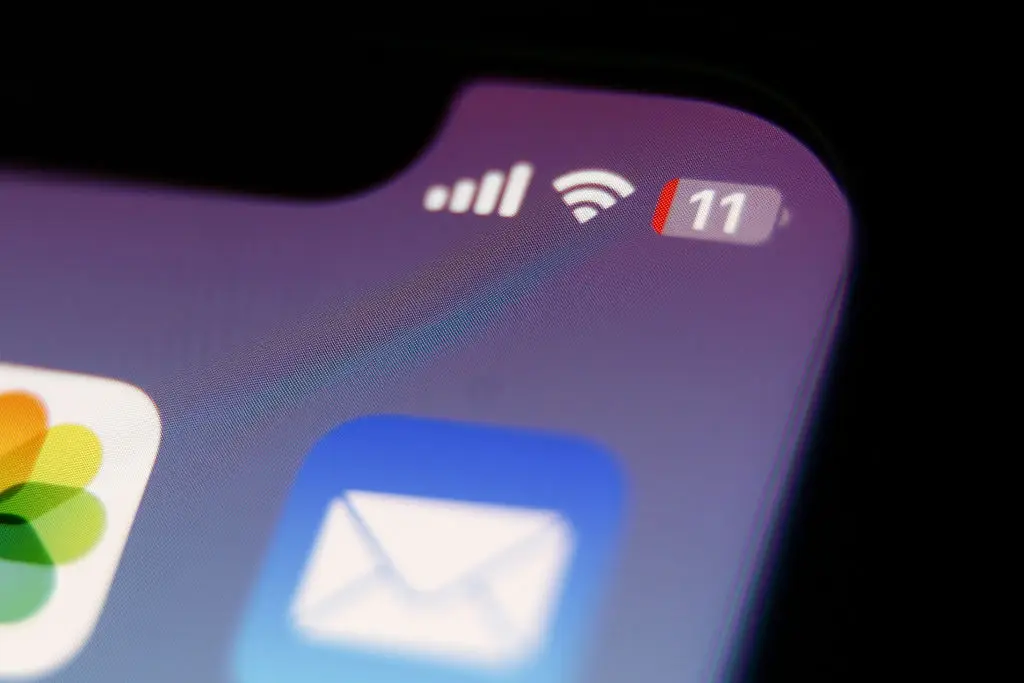
You'll first want to enable the Auto Brightness feature – found by heading into 'Accessibility', then 'Display and Text Size' – as this, as the name suggests, automatically adjust your screen's brightness levels to stop it from being too bright, saving you battery as a result.
You might also want to consider disabling a setting like ProMotion if your iPhone has it, as while this makes your phone feel far smoother, it causes the screen to refresh twice as much which takes power to do so.
Updating your apps
One trick that's specifically related to life after an iOS update is to update all your apps at the same time, as this prevents background drain from pulling away battery power when you need it most.
It's best to do this when you have access to a charger and are on the fastest Wi-Fi possible, and while it is a bit annoying to go through when you're doing it, it will definitely make a difference after it's done.
In order to do this, you'll want to head into the App Store and select your profile icon. Then head to App Updates, and select Update All to start the process.
Use Wi-Fi instead of 5G
This isn't something that you can always take advantage of, but a surprising number of people – perhaps you included – aren't aware that being on 5G drains your battery faster than being connected to Wi-Fi.
This issue is extended further when you're in an area with poor connection, as it forces your phone to constantly attempt to reconnect and that's bound to drain your battery faster than usual.
While you need to be careful about connecting to open Wi-Fi networks in public places, hooking up to a connection you can trust is always going to be beneficial when possible.
Disabling background activity
As you might have guessed by reading these tips so far, reducing the workload your phone has to regularly go through is going to help your battery life and background app activity is a big culprit of that.
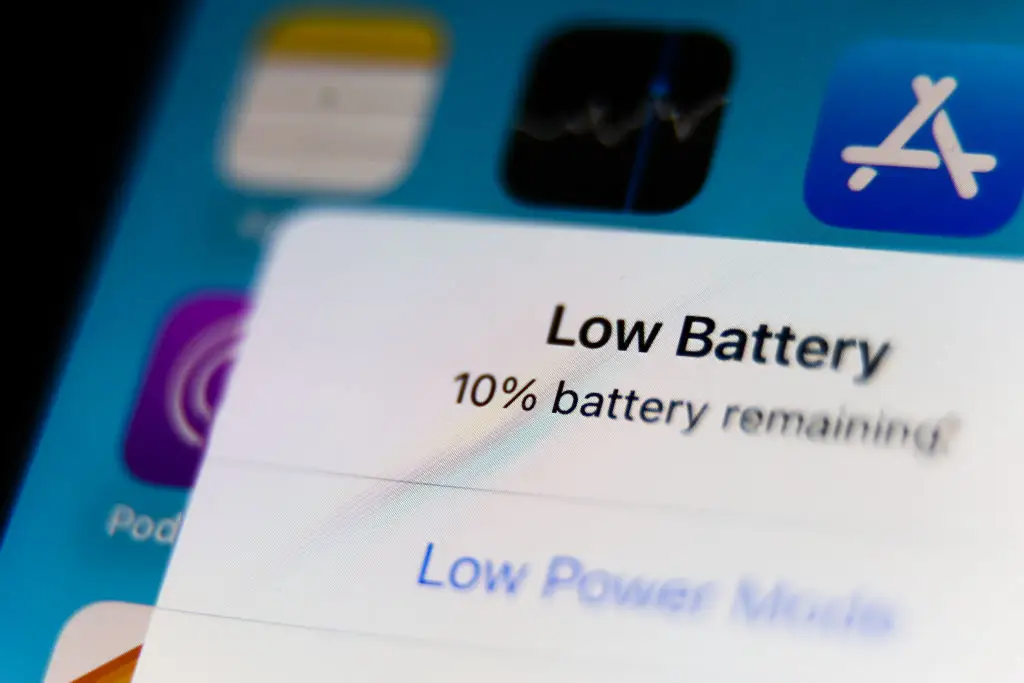
By default most apps on your phone remain 'active' even when you're not using them, as that's how they're able to provide you with new updates and stay refreshed whenever they're reopened.
It's something that you won't necessarily notice the benefit of when it's on but miss when it's off, yet it can provide a massive improvement to your battery life in doing so.
It's not a single on and off switch either as you can individually tweak which apps are able to remain active in the background, so follow these steps to find the relevant settings:
- Head into your iPhone's Settings menu
- Select the General option and then head into Background App Refresh
- Click on apps individually to tweak the settings
Replacing your battery
One game-changing fix that anyone with an older iPhone should probably consider is a full battery replacement, as while this can cost money depending on the situation, it's by far the biggest difference maker when it comes to battery life.
The first thing you'll want to do is check your phone's battery health, which can be done by heading into the Settings, selecting the Battery option, and then Battery Health.
If it's below 80% – which is a likely possibility if your phone is more than two years old – then you could be eligible for a free replacement if you pay for AppleCare+.
Otherwise, it's a good idea to head to your nearest Apple store to discuss the possibility, as it'll likely breathe new life into a device that might seem like its on its last legs.