These 24 iOS features will make your iPhone feel like a whole new device


While the next iOS update rolls around sooner than you know it, sometimes you might not be getting the full extent of features each update has to offer.
Whether it's protecting your privacy, saving battery life, or just making everyday use a little smoother, here are 24 iOS features that will make your iPhone feel brand new, according to CNET.
1. Stop apps from tracking your exact location
While Uber and other tracking apps use Precise Location to find where you are to pick you up or deliver food, not all apps need this feature turned on.
Advert
Go to Settings, select a social media app like Instagram, go to Location > Toggle off Precise Location to limit what it can access.
2. Turn the back of your iPhone into a button
The back of your iPhone can be set up as a hidden button to trigger actions like taking a screenshot, enabling low power mode or running a shortcut.
Simply head to Settings > Accessibility > Touch > Back Tap, then choose either a double or triple tap to assign an action.
3. Extend your battery's lifespan
Lithium-ion cells last longer when they aren't kept fully charged. On the iPhone 15 and later, go to Settings > Battery > Charging and use the Charge Limit slide to cap charging at 80 percent. By choosing a limit below 100 percent, you can preserve long-term battery health.
4. Enable real-time voicemail transcriptions
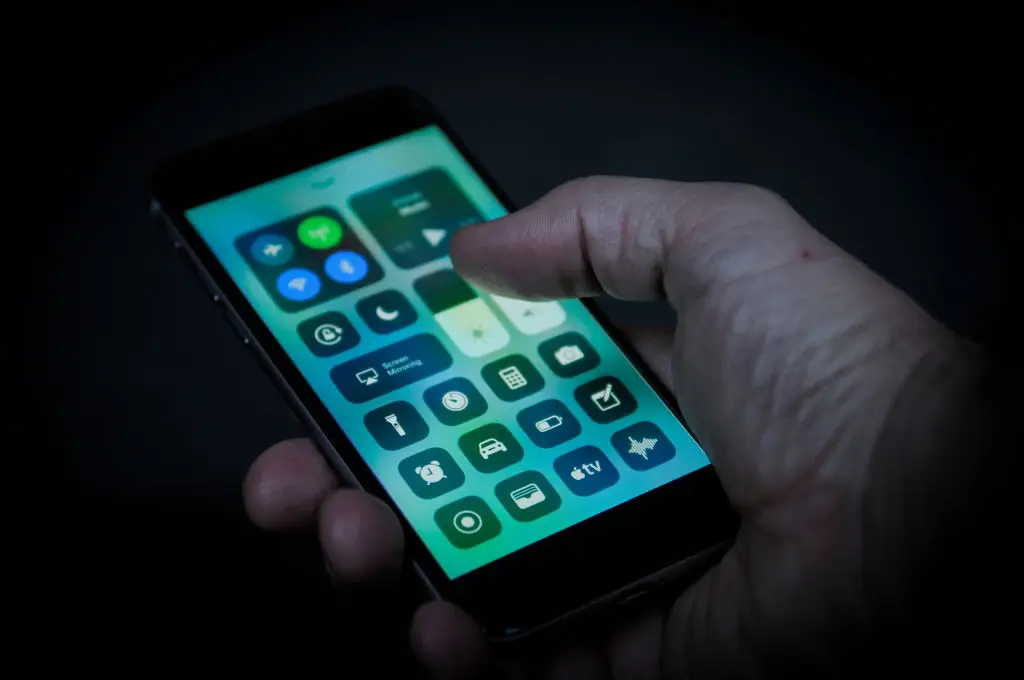
Live Voicemail was introduced with iOS 17 and lets users read a transcription of the voicemail as it's being left. Users can view the transcript and choose whether to pick up the call. You can activate this by going to Settings > Phone > Live Voicemail.
5. Bring back full-screen incoming call alerts
If you prefer the old full-screen call alert over the small banner at the top of your screen, you can bring back this tweak back. Go to Settings > Phone > Incoming Calls and tap Full Screen.
6. Turn off 5G coverage to save battery
Apple offers Smart Data which flicks between 4G LTE and 5G to get the best service, but this can take a hit on your iPhone's battery life.
If you're not in a rush for 5G, go to Settings > Cellular > Primary > Voice & Data and tap LTE. You can always toggle this off if you want to use 5G.
7. Fine-tune your 5G data usage
If you're keeping 5G on, it's worth checking your data mode settings.
Go to Settings > Cellular > Primary > Data Mode to choose between Allow More Data on 5G, Standard or Low Data Mode. The first option unlocks higher quality video, FaceTime calls and streaming on Apple TV and Apple Music. Be sure to check your carrier and data plan to see where your default settings lie.
8. Stop app clutter on your home screen
Every app you download automatically appears on your home screen by default. However, this can quickly clutter up space. Instead, you can stop downloads from appearing on your Home Screen by going to Settings > Home Screen & App Library and select App Library Only.
9. Unlock your phone while wearing a face mask
If you're running iOS 15.4 or later, you can unlock your iPhone while wearing a face mask without needing an Apple Watch. Go to the Settings app and open Face ID & Passcode where you can toggle on Face ID With a Mask.
10. Move Safari's address bar to the top
A few years ago, the Safari search bar moved from the top to the bottom of the screen. It's a subtle change but if you prefer the old layout, go to Settings > Safari and under the Tabs section, select Single Tab to move the URL bar back to the top.
11. Access features without unlocking your iPhone
If you want to access private info or messages without unlocking your phone, you can do this via the Control Centre.
Go to Settings > Face ID & Passcode, scroll to Allow Access When Locked and adjust your preferences, from message replies to accessing your Wallet app.
12. Set a default email app or web browser
Apple allows users to set default apps outside of Safari and Mail.
Go to Settings, find the app you'd like to use instead (like Google Chrome or Microsoft's Outlook) and look for the Default Browser App or Default Mail App option to switch it over.
13. See full notifications on your lock screen
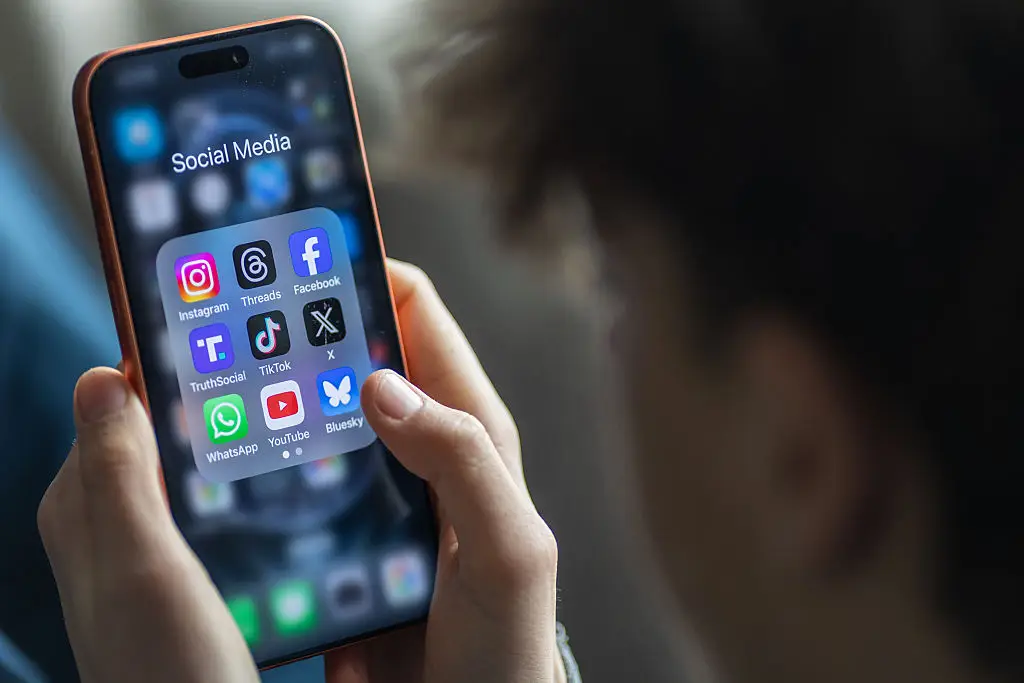
By default, Face ID iPhones hide notification content until the device is unlocked. If you prefer message previews on your lock screen from Facebook Messenger or WhatsApp, go to Settings > Notifications > Show Previews and select Always.
14. Turn on/off HDR video recording
Latest iPhones record in HDR with Dolby Vision, giving you brighter, more colourful footage.
But if you prefer to handle the editing yourself (or wish to try out HDR), go to Settings > Camera > Record Video > Toggle on/off HDR Video.
15. Customise your home screen
iOS offers a cool wallpaper feature that lets users switch between its light and dark versions.
In Settings > Wallpaper, select 'Dark Appearance Dims Wallpaper' and choose a new wallpaper with a half black, half white circle. The device will automatically switch between light and dark versions based on your phone's current mode.
16. Turn on dark mode to save battery
Dark mode swaps white backgrounds for black ones across your apps, which can noticeably improve battery life, and be a little nicer on your eyes at night.
To turn it on, simply go to Settings > Display & Brightness and select the Dark option at the top of the screen, or swipe down from the top-right of the screen and tap the Dark mode icon in the Control Center.
17. Manage distractions in Focus Mode
Focus Mode filters out less important notifications while letting through alerts from people and apps that matter most to you.
Go to Settings > Focus to choose from preset modes like Work, Sleep and Do Not Disturb, or create your own custom setup.
You can set up different types of Focus Modes for specific circumstances, like gaming, driving, sleep or fitness. Tap the plus (+) symbol in the top right corner to add a new Focus.
18. Adjust your text size
There's no use straining your eyes. If the default font size isn't working for you, go to Settings > Display & Brightness > Text Size and use the slider to find what works best. You can also turn on Bold Text, just below the Text Size button, for extra clarity.
19. Add an alternate appearance to Face ID
If Face ID is struggling to recognise you consistently, setting up an alternate appearance can help. Go to Settings > Face ID & Passcode > Set Up An Alternate Appearance and scan your face again.
20. Disable auto-brightness
Screen brightness can have a huge impact on your iPhone's battery life. If you'd rather control your screen brightness manually, head to Settings > Accessibility > Display & Text Size and turn off Auto-Brightness at the bottom of the page.
21. Review your privacy settings
It's easy to tap 'allow' on every permission request when setting up a new app. But it's worth taking a few minutes to go through Settings > Privacy & Security and review exactly what each app can access and when. Keep your privacy and data safe by reviewing your app permissions.
22. Customise your Control Center
The Control Center is more flexible than most people realise. Go to Settings > Control Center to add, remove or rearrange shortcuts - from screen recording and flashlight to timers and accessibility tools.
23. Organise alerts with Notification Summary
Rather than letting non-urgent alerts pile up throughout the day, Notification Summary bundles them together and delivers them at a time you choose.
Go to Settings > Notifications > Scheduled Summary to set it up. Time-sensitive alerts like calls and messages will still come through immediately.
24. Change Siri's voice
Tired of the same Siri voice? There are now several Siri voice options available, including a gender-neutral English option.
Browse and switch between them at Settings > Siri & Search > Siri Voice and the change will apply across all devices linked to your Apple ID.