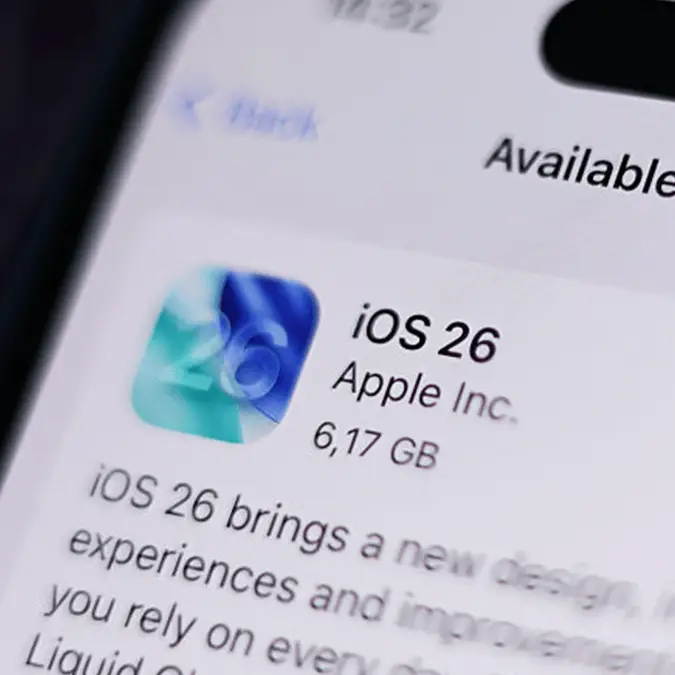
Expert reveals every iOS 26 setting you should adjust on your iPhone right after updating


Millions of iPhone users have already made the jump over to iOS 26 over the last few months, but the transition isn't always easy to handle with all of the new features that Apple brings to the table.
Outside of the changes that are clear as soon as the update finishes downloading, like the new Liquid Glass visual overhaul that's proven to be rather unpopular, there is also an abundance of small tweaks that you might take a while to fully adjust to.
Apple doesn't always make it easy to change these around to adjust them to your liking, and it can make the experience of using an iPhone become a bit challenging in the months following a new iOS switch.
Thankfully, iPhone experts have identified a number of key settings that you should adjust as soon as you've made the switch to iOS 26, as they'll make all the difference when adapting to this new operating system.
Always On Display blur
As shared by Apple pro Ryan Chistoffel over at 9to5Mac, one of the best early settings to adjust after moving over to iOS 26 is the new wallpaper photo blur for your Always On Display.
Advert
Part of the Liquid Glass design means that your wallpaper photo is now automatically blurred by default, presumably to make the affect appear with a greater strength, but that does mean that whatever you've chosen to appear whenever you turn on your device won't show as you intended it to.
Thankfully, all you need to do is head into the Settings menu, select the Display & Brightness option, navigate to Always On Display, and then swift off the Blur Wallpaper Photo setting to change it back to how it was before.
Camera swipe
Another setting that you might want to consider is one that disables the long-available ability to access the camera with a single swipe from the lockscreen.
This has been one of the classics of the iPhone, and has historically allowed people to quickly take photos with the smallest number of steps, ensuring that you don't miss that once-in-a-lifetime shot.
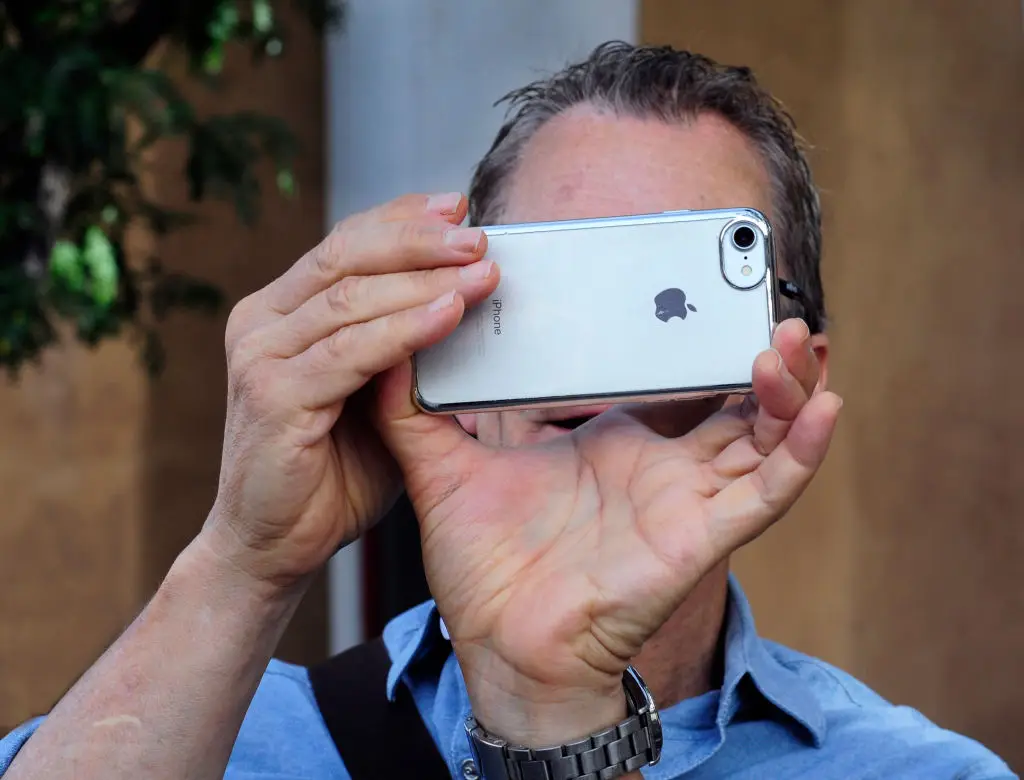
However, newer iPhone models have introduced a number of new buttons that do this exact action with even fewer steps, and you might find that now there's situations when you're opening the camera from the lock screen when you don't mean to.
With iOS 26 you can now turn off the ability to swipe, so just head into the Settings, find the Camera section, and toggle off the Lock Screen Swipe to Open Camera option right at the bottom.
Adaptive Power
Apple and its Android rivals are constantly nabbing ideas from one another, but one setting that's finally made its way over to iPhones to the relief of many users is Adaptive Power.
This, unlike Low Battery Mode, applies whenever you're using your device to intelligently preserve the device's battery. It effectively makes performance adjustments in the background, slows down some processes, lowers your brightness, and generally lowers the power draw of your iPhone to increase the battery life.
It might not be for everyone, as power users will always want to ensure that they're getting the most they can out of their phone, but for the average iPhone user it's an incredibly useful setting.
To turn it on, go to Settings, Battery, then the Power Mode tab where you can find the Adaptive Power setting to enable it.
AirPods sleep detection
One of the most underrated new features to arrive with iOS 26 is the sleep detection toggle for AirPods, which identifies when you've dozed off to pause any content that you were watching.
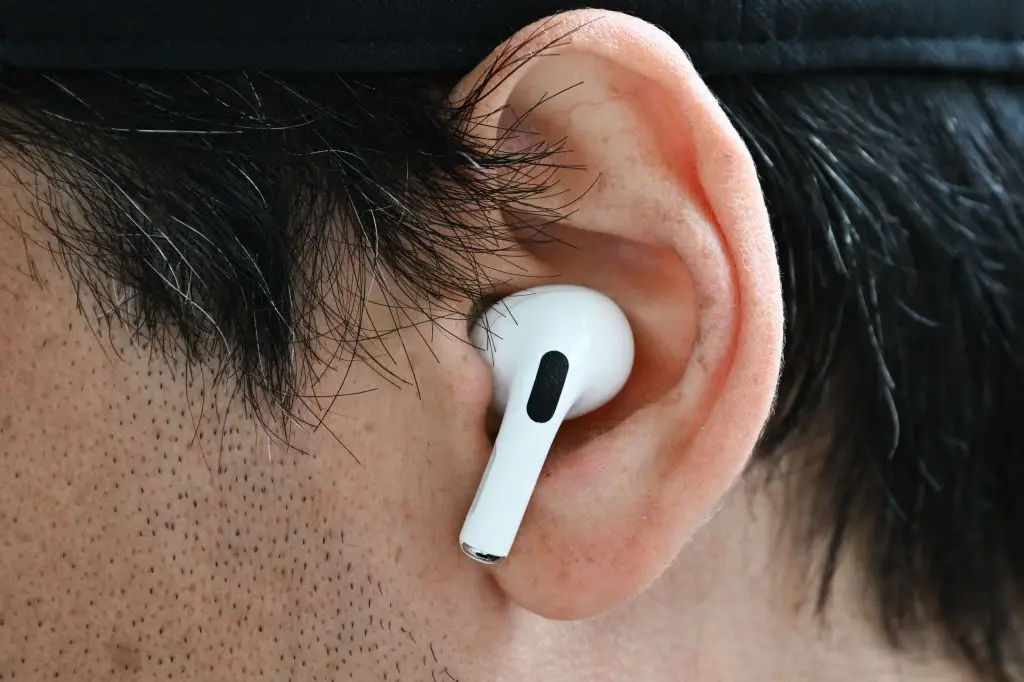
This is extremely useful if you listen to music, podcasts, or audiobooks when you're in bed, as it can prevent you from losing your place or wasting unnecessary power when you're fast asleep.
It is only available for the Pro 2, Pro 3, and AirPods 4, but if you have any of these devices then head into the AirPods settings menu to find the Pause Media When Falling Asleep option.
You can also enable a setting that prioritises your headphones when it comes to Bluetooth connections, which is extremely useful if you've tethered your phone to multiple devices like your car, work speakers, or TV.
Go to the Settings menu and navigate to the AirPlay & Continuity section inside the General tab. You'll then be able to find Keep Audio with Headphones, which you'll want to enable.
Disable Liquid Glass
We've saved the best for last, as this is definitely the biggest complaint and request for many iPhone users after 'upgrading' to iOS 26.
While Liquid Glass definitely has its fans, the ability to tune down its visual effects has proven to be an incredibly popular addition from Apple in a rare move that acknowledges fan backlash.
All you need to do this is to head into the Display & Brightness settings, then Liquid Glass, and from there you can select between Tinted and Clear, with the former being the new and reduced version.