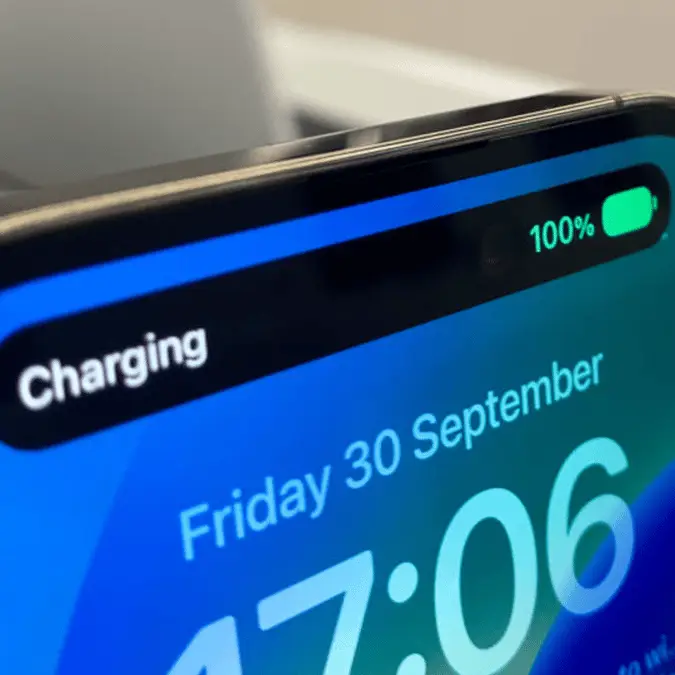
Little-known iPhone 'shortcut' trick that boosts your iPhone battery life for free


Life really 'sucks' sometimes, and we don't just mean because of bad weather, ever-increasing bills, and your boss breathing down your neck.
Life sometimes literally sucks in terms of sucking the life out of our smartphones, as it feels like we've barely unplugged our devices from their chargers and they're already in the red.
Back in the day, our trusty Nokia phones not only felt like they could survive a direct hit from a nuke, but you could get away with charging them once a week. While we don't imagine we'll be marooned on a desert island like Lost and be in desperate need of our phones, when we're shelling out $1,199 on the iPhone 17 Pro Max, it's not exactly cheap.
While we could sit here all day and list all the reasons Apple and Google fans will argue about the pros and cons of iPhone and Android, one issue that continues to rear its head is battery life.
Why do consumers complain about the iPhone battery life?
Advert
As phones get more advanced, consumers continue to expect thinner phones that are smaller but somehow boast bigger screens, weigh less, and need charging less. Having less real estate to play with obviously means it's harder to squeeze in a supersized battery, with complaints about battery life continuing to haunt tech giants like Apple.
How many times have we seen PSAs about angry iPhone users telling you to uninstall the latest iOS because it's zapping our battery life?
There are more TikTok videos out there than we care to count when it comes to improving battery life, while a simple tweak of some well-hidden settings can see your charging levels soar.
We know there are certain killer apps and the likes of background refresh zapping your battery life, but as tech expert Sean Keach reminds us, it's easy to claw back power in other areas.
Writing in The Sun, Keach pointed to three key areas that you might or might not know about.
How can Shortcuts improve your iPhone's battery life?
Low Power Mode is sometimes known as 'yellow mode' because it turns your battery icon yellow when activated. Known to reduce background activity, it can be found in Settings > Battery > Power Mode, then simply flick the switch for Low Power Mode.
Low Power Mode can also be added to your Control Centre or activated by asking Siri.
It makes a range of changes to your phone without realizing, including auto-lock defaulting to 30 seconds, reduced display refresh rate, automatic downloads being turned off, and email fetch also being paused.
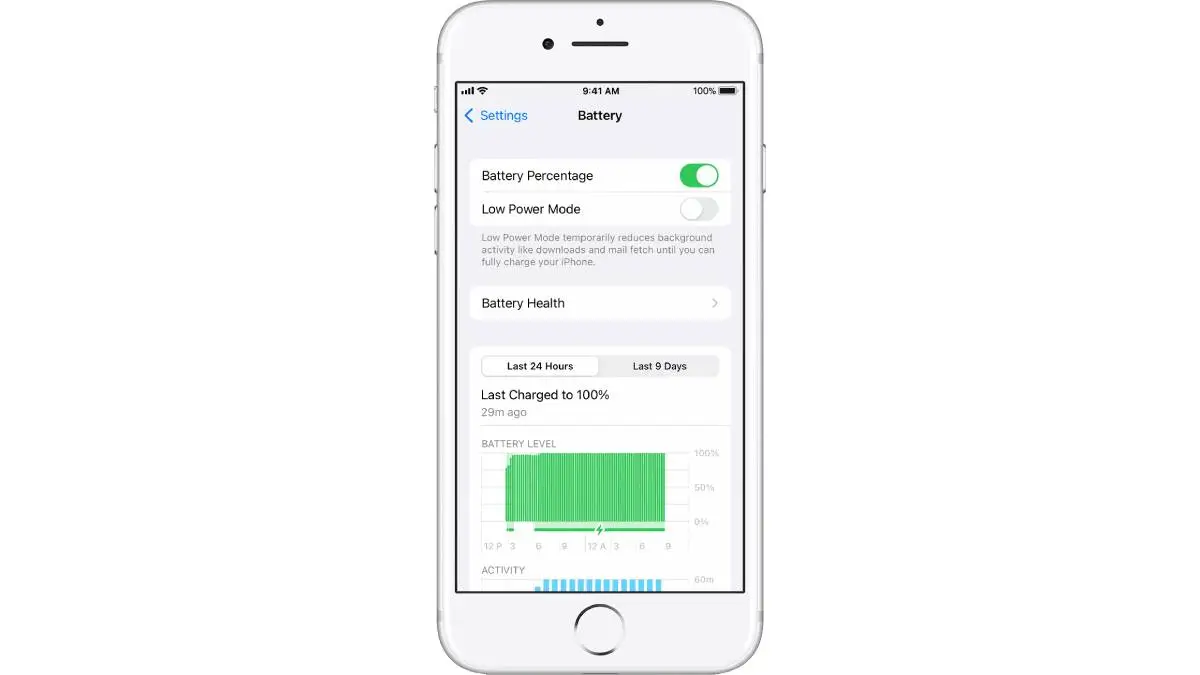
Still, with others noticing these tweaks, you might want to set Low Power Mode to activate when your iPhone gets below 40%.
Up next, Adaptive Power Mode tinkers away in the background and learns your personal habits to predict when you'll need an extra pump of battery life.
Be aware that Adaptive Power Mode is off by default for the iPhone 15 Pro Max and later, although it's on by default for the iPhone 17 line and the iPhone Air. Sadly, anyone with a model older than the 15 Pro Max won't be able to use it.
It'll take around a week to learn your habits, but after that, Adaptive Power Mode will start making performance adjustments.
Finally, you can create custom automation to save battery life in the Shortcuts app.
Open the Shortcuts app and press the '+' icon to add different functions like Lower Power Mode and toggling White Point. When you've got all the functions you want, rename it something like 'Battery Saver' and you've got everything in one handy place.
Once you've got your battery saver shortcut, you can add it to the Control Centre or even assign it to the Action Button on newer iPhones.
Enjoy your iPhone's beefy new battery life.