Little-known iPhone setting you should turn on before vacation to save you a massive bill


Apple fans have been left stunned after one eagled-eyed user took to the internet to highlight a little-known setting which could save you money.
The setting should be turned on before heading off on vacation if you want to save yourself from being landed with a massive bill.
This comes as one Apple user took to social media to ask for advice before taking an international trip to Japan, specifically which logistics and iPhone settings to be aware of.
In the post published on Reddit, the poster wrote: “I’m traveling with friends and we’ll be periodically splitting up to do our own things so we've decided that, this time around, eSim won't cut it.
Advert
“It’s my understanding that the ‘unlimited’ data has a soft limit of 15GB; well, it’s been 84 years since I’ve had to pay attention to how much data I use, lol. What sorts of settings should I change to make sure that I don’t accidentally burn through those 15GB? I don’t tend to do a lot of video social media on the go so I should seemingly turn social media apps’ cellular data off for the apps with video like tiktok and instagram, just in case my phone falls off of the hotel wifi when I upload or watch something.
“Should I turn Photos’ cellular access off also? I don’t love the idea of losing a day’s worth of photos etc., so maybe leaving ‘unlimited updates’ off is adequate? I don’t have any phone games, I carry my Switch 2, so I don’t need to worry about that potential drain.”
This prompted a response from other users, with one highlighting a feature that could end up saving the original poster a lot of money. They explained: “If you go to your cellular settings and turn on Low Data mode, your iphone should take care of most things for you. Backgrounds syncing icloud so on.”
And another added: “Background app refresh should be turned off to reduce data usage. You can also keep your phone in airplane mode as often as possible to reduce usage so you don’t forget to close apps and leave them running.”
Low Data Mode can be applied to devices running iOS 13 or later and with it, users can expect their phone to stop using network data when they’re not actively using those apps, have Background App Refresh turned off as well as automatic downloads and backups, pauses updates for services such as iCloud Photos, and see the quality of streaming content reduced.
How to switch on Low Data Mode on an iPhone
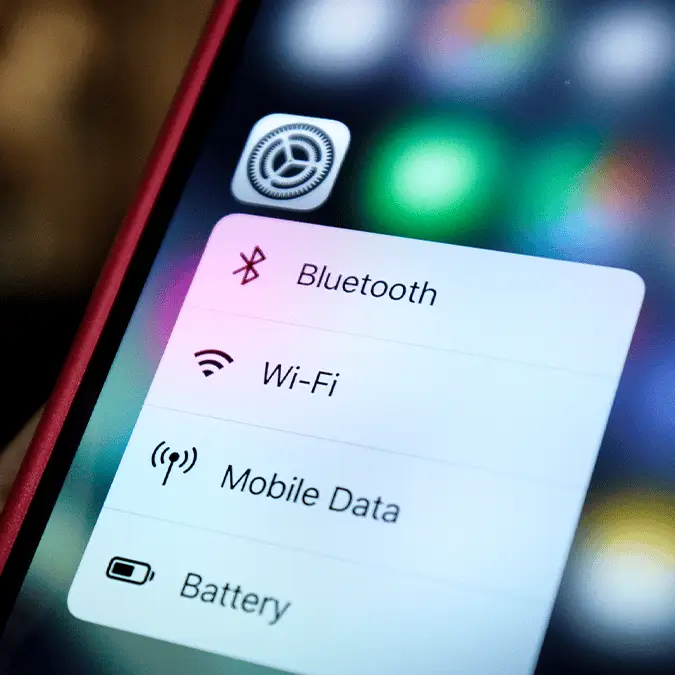
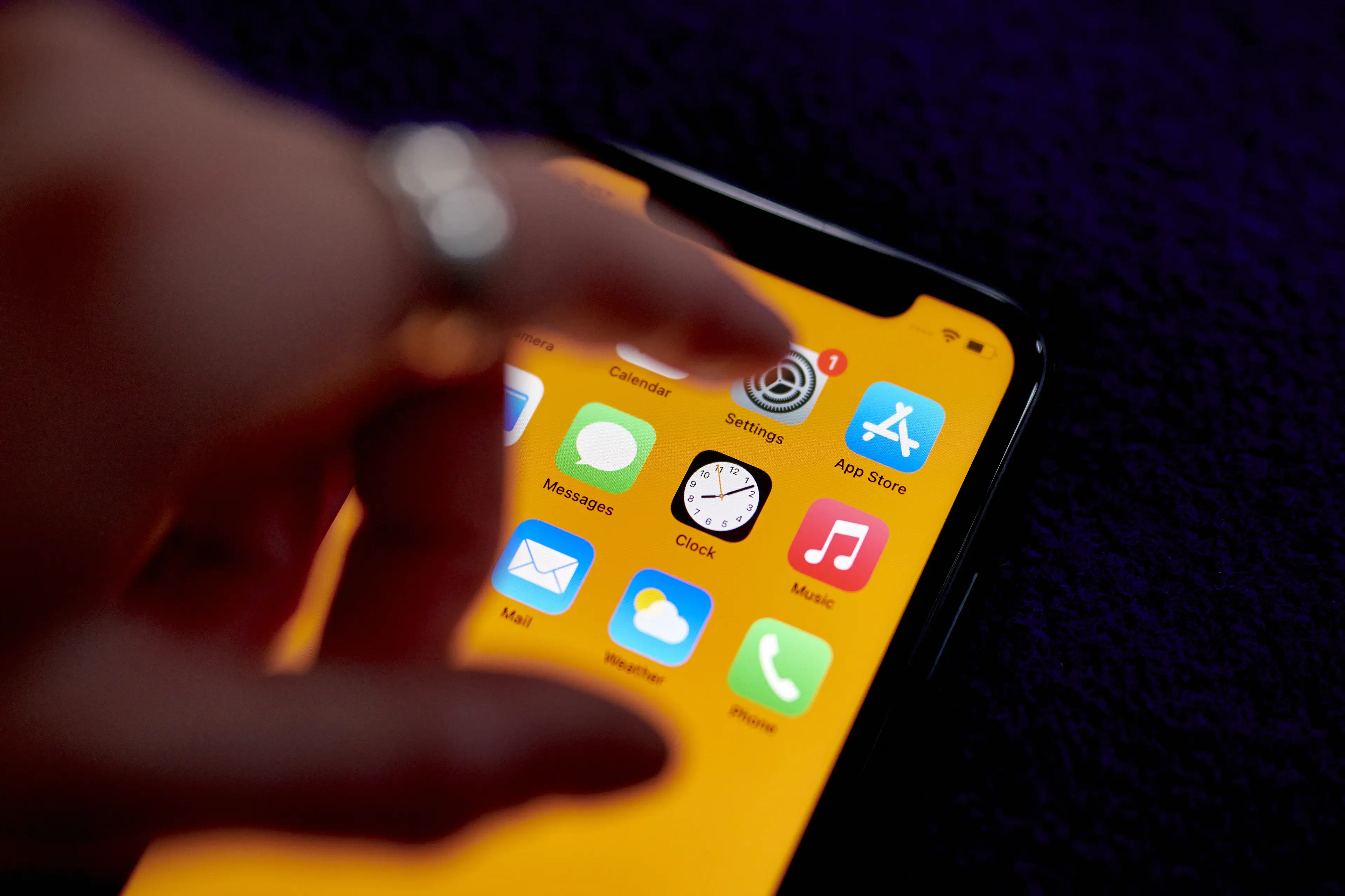
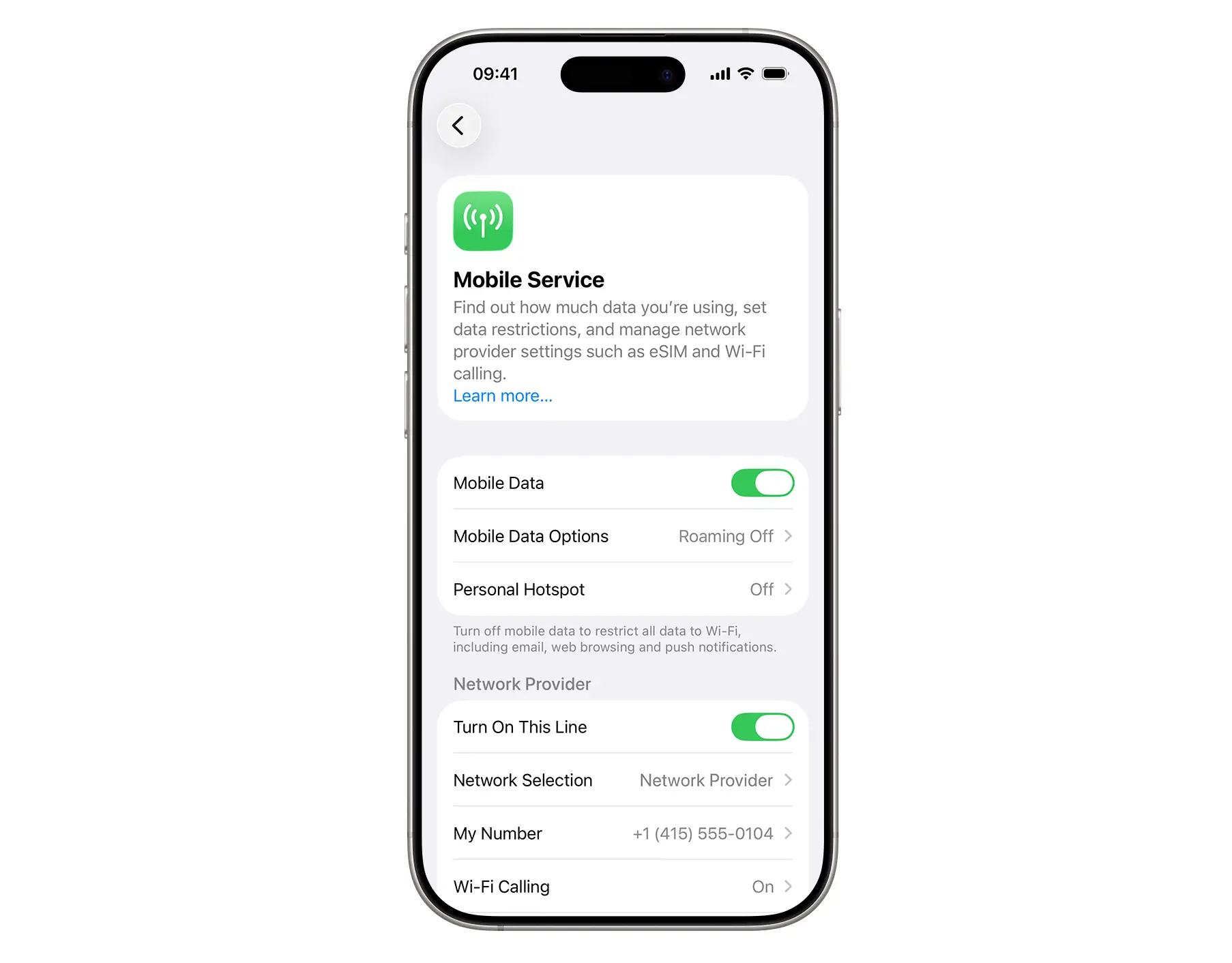
In order to turn on Low Data Mode, you’ll first need to head to the Settings app and select Mobile Data.
From there, click on Mobile Data Options, then Data Mode, and switch on Low Data Mode.
According to Apple, this feature will adapt built-in iOS apps and services adapt in the following ways:
- App Store: turns off video autoplay, automatic updates and automatic downloads.
- Music: turns off automatic downloads and high-quality streaming.
- Podcasts: limits how often feeds update, and the device only downloads episodes when it is connected to Wi-Fi.
- News: turns off article prefetching.
- iCloud: pauses updates and automatic backups, turns off iCloud Photos updates.
- FaceTime: optimises Video bitrate for lower bandwidth.