iPhone users share vital Siri shortcut to use if you're ever pulled over by the cops


If you've got an iPhone then you will definitely want to set up this 'essential' Siri shortcut, as it lets you immediately start recording if you ever get pulled over by the cops.
Siri isn't useful for a whole lot these days with many scorning the feature that Apple has arguably neglected, but there are some ways that you can use the personal assistant that could come in handy when you least expect it.
One woman managed to contact emergency services in a situation of extreme domestic abuse, and she claims that the hands-free nature of the feature genuinely saved her life in that moment.

Advert
Additionally, a new version of Siri is seemingly just around the corner – especially after the announcement of a new partnership with Google – so getting to grips with the feature now after all these years will help you stay ahead of the curve.
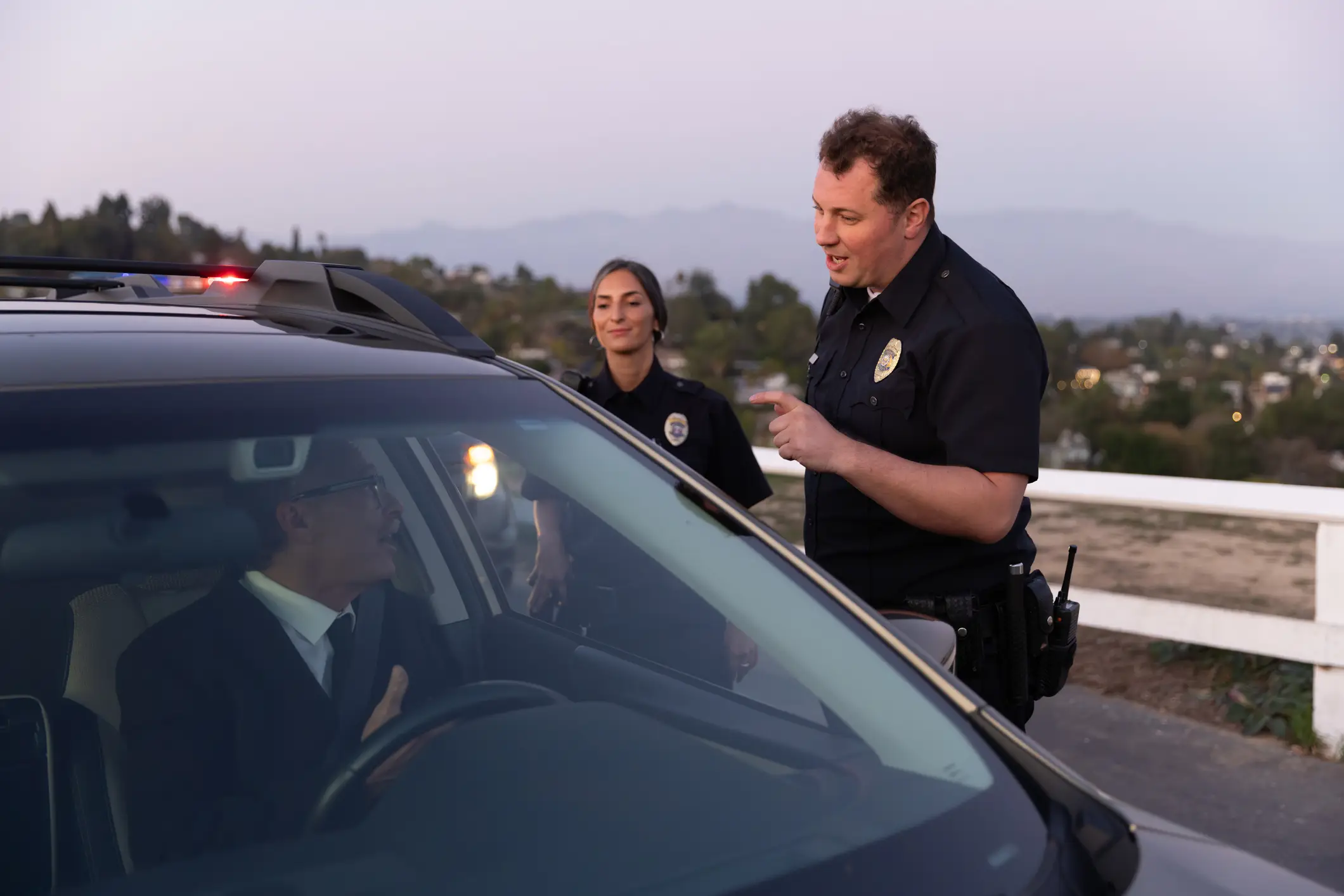
As shared by Business Insider, one key use that many iPhone users swear by involves a clever shortcut, as saying five specific words out loud automatically enacts a chain of events that protects you if you were to ever be pulled over by the police.
The exact set of words in question is 'Siri I'm Getting Pulled Over', and doing this after you've set it all up will turn on Do Not Disturb, send your location to a number of designated contacts, and then start recording video.
This is especially useful right now as tensions between United States citizens and law enforcement are incredibly high, but this feature isn't built into Siri by default and you'll need to activate a shortcut for it to work.
How to activate the 'I'm Getting Pulled Over' Siri shortcut
The first thing you'll want to do is enable 'Untrusted Shortcuts' on your phone, which you can do by following this path: Settings > Shortcuts > Enable 'Allow Untrusted Shortcuts'.
You will be met with a pop up warning you of the risks that enabling this setting could create, but you'll want to select 'Allow' and then enter your password.
Once you've done that, you'll want to open this shortcut in your iPhone's Safari browser, and then select 'Add Untrusted Shortcut' at the bottom.
You'll then have to go through the setup process, where you can choose your contacts for the emergency location tracking text, then which ones will be sent the video that is recorded, and finally you'll want to select 'Done' to complete the process.
Afterwards, head back to the My Shortcuts section, select 'All Shortcuts', and then press the three dots (...) next to 'I'm Getting Pulled Over'. Scroll down to Location, and then enable the Allow Access option alongside Allow While Using App.
To do the same for the recording side of things, head back to the overview menu for 'I'm Getting Pulled Over' and select Messages, then Camera, and then Photo, and tap 'Allow Access'. You can also choose whether you want to record with the front or back camera — it should be the front by default.
When it comes to actually using this setting, you'll want to hold down the Lock or Home button on your iPhone depending on your specific model, or you can activate it by simply saying 'Hey Siri'.
Once you've done that, simply say 'I'm getting pulled over' and the process will begin, and it genuinely could save your life in some circumstances.