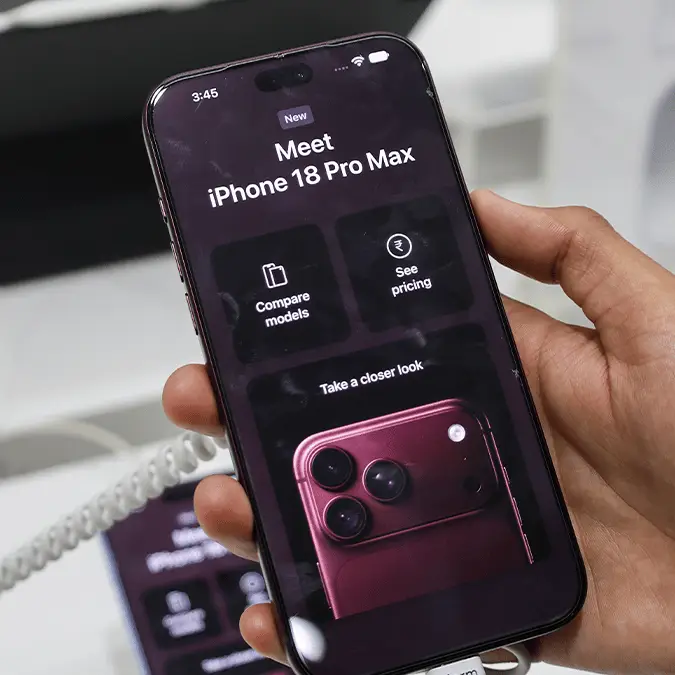
Reason why the iPhone 18 Pro Max actually comes with smaller battery than promised


Apple's most powerful iPhone technically arrives with a lower battery capacity than advertized, yet a clever trick allows the tech giant to circumvent rules and restore the full potential as soon as you turn it on again.
Bigger batteries are almost a guarantee when you're buy a new phone, yet improvements don't always come in the form of size with software playing a key role in optimizing the efficiency of any gadget.
Apple's newest iPhones deliver on both fronts, however, providing not only a bigger battery when looking at capacity but also taking advantage of the other hardware inside the device to extend the life even further.
What you might not be aware of though is that the iPhone 18 Pro Max technically 'loses' battery capacity when they're being shipped — but Apple thankfully restores things to normal using a game-changing feature once it arrives on your doorstep.
Why is the battery capacity smaller when shipped?
As reported by PhoneArena, current shipping regulations in the United States mandate that devices with lithium-ion battery cells exceeding 20 Wh (watt hours) are classified as 'dangerous goods', and are therefore subject to far stricter controls.
Advert
Attempting to send a device exceeding these capacities – which the iPhone 18 Pro Max unfortunately does – would require the package to meet the standards of hazardous materials rather than a standard phone, which would obviously be a problem for Apple.
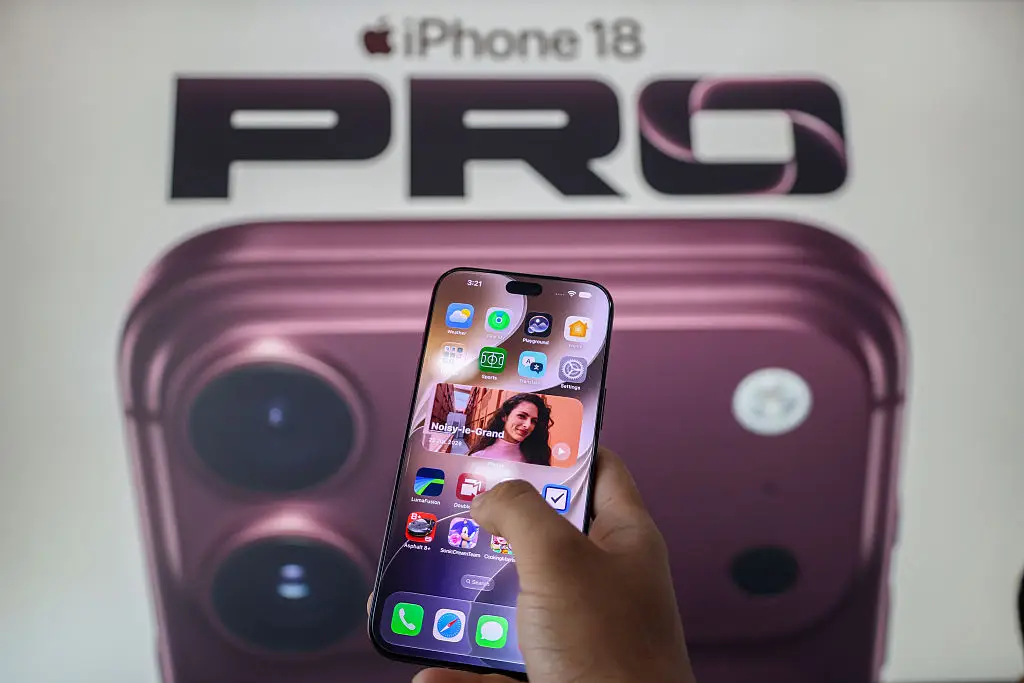
That's why the company has introduced 'Prepare to Ship' — a new 'innovative battery-firmware solution' that artificially lowers the phone's battery capacity to a number below the 20 Wh limit.
This is enabled by default whenever your phone is sent from the manufacturer, but automatically turns itself off whenever you start up the device for the first time, leaving you with the promised battery capacity and no knowledge that it was ever lowered.
You need to enable this feature when sending the phone yourself
What you do need to take into consideration, however, is the knowledge that these shipping rules also apply to you as an individual if you ever find yourself needing to send your phone via mail.
This could be if you wanted to sent it to a friend or family member, sell or trade-in the device, or send it in for repairs, and it's vitally important that you enable the Prepare to Ship setting on your phone before you do any of these.
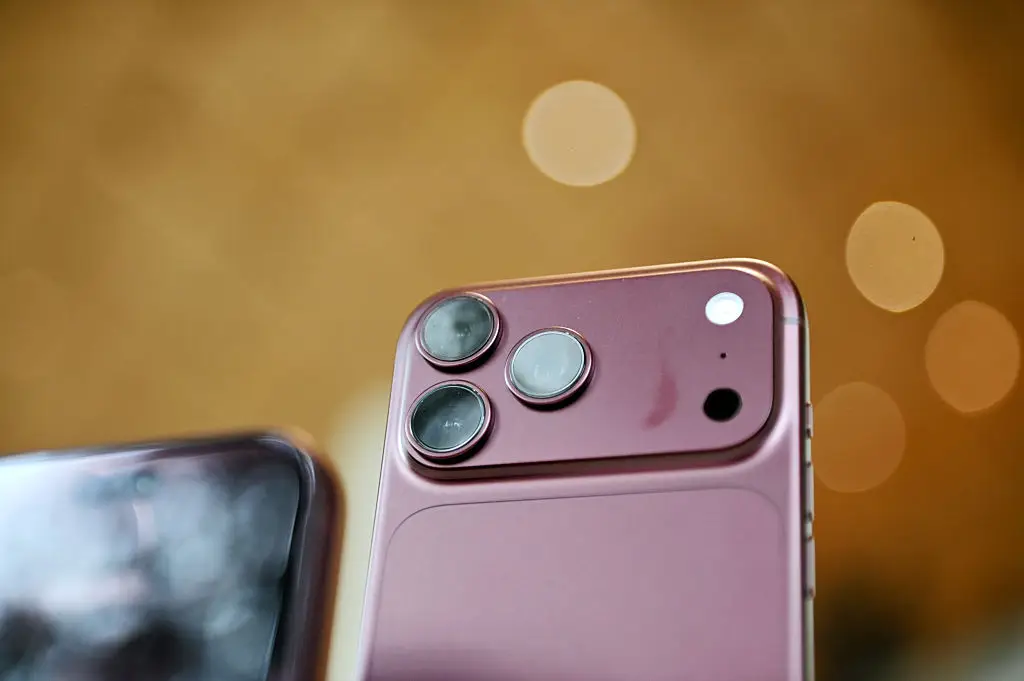
In order to do this, make sure to follow the steps listed below:
- Open the Settings menu and navigate to the General section
- Select the Transfer or Reset iPhone option
- Press on the Prepare to Ship button
- Select the relevant option if you're sending your phone in for repair or trade-in, or select Other if you're sending it for another reason
Apple also suggests disconnecting your phone from a charging cable while doing this, as it speeds up the process as a result.