
iOS 27 has finally fixed one of the iPhone's most annoying 'design flaws'


If you’ve been personally victimised by a stray tap on your iPhone, Apple’s new iOS 27 has sorted it for you.
A new operative system update has worked to fix one of the iPhone’s most annoying features according to multiple users, not least Justin Bieber.
The ‘Everything Hallelujah’ singer has complained about this feature in a viral post, earning the support of some fellow iPhone users who saw their music suddenly interrupted by an inadvertent tap on their screen.
We’re talking about the minor inconvenience of having your finger slip onto the wrong icon when you’re messaging someone.
Advert
An accidental tap onto the dictation/audio function when you’re pressing the “send” button in your Messages app means that if you’re listening to some music, this will stop immediately as your phone stands by for instructions.
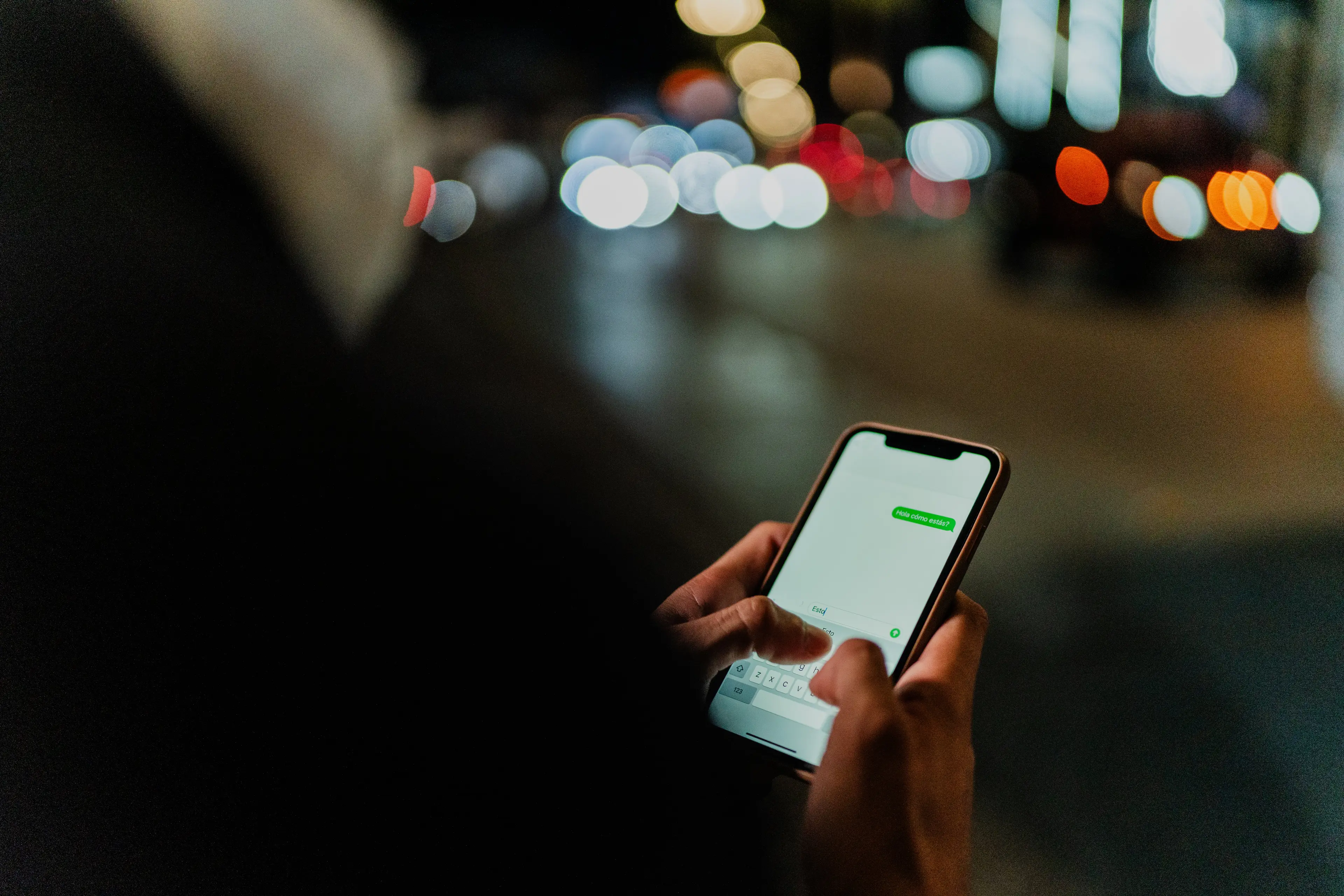
It’s a small, everyday annoyance, but one that’s very frequent given the “send” button and the dictation function are so close.
Bieber pointed this a while ago in an Instagram post, writing: “If I hit this dictation button after sending a text and it beeps and stops my music one more time.”
“I’m gonna find everyone at apple and put them in a rear naked choke hold,” the Canadian singer wrote in December 2025.
“Even if I turn off dictation I somehow hit the voice note thing,” he added, concluding: “The send button should not have multiple functions in the same spot.”
It appears that Bieber’s post and several users’ complaints have reached Apple as the new iOS 27, which is in beta and is expected to have a wider rollout in September, has made the stray tap onto the dictation icon a thing of the past.
Now, the message text field has a new setting. Users can personalise their Messages app by choosing whether it displays the audio waveform icon for recording a voice message, the microphone icon for dictation, or nothing at all. All you need to do is head to Settings on your iPhone or iPad, tap Apps at the bottom of the list, tap Messages and then Show in Text Field. From there, you can select one of three options: Record Audio, Start Dictation, or None.

If you often find yourself cursing your phone and your finger while you’re listening to music because you’ve once again tapped the dictation or audio recording function, pick None so you can finally enjoy your music without any accidental interruption.
Fret not if you occasionally record voice messages, as you can still use the plus button to the left of the input field to enable Audio. Similar shortcut for dictation, you'll find the microphone key at the bottom right of the iOS keyboard.