Changing these settings on your TV can instantly improve the picture quality


It's never been easier to get a great TV for an affordable price, yet so many people aren't getting the most out of their devices by leaving them on the factory settings, as certain tweaks can immediately enhance the picture quality.
If you've not purchased a new TV in a while you might be shocked to find out just how cheap both big and high resolution displays are these days, especially if you're not too fussed about some of the more 'enthusiast features'.
You can easily head over to Amazon or down to your nearest tech store and pick up a 4K display stretching 65 inches and beyond for around $500 – and sometimes even less – if you know what you're looking for, and it can give you a great foundation to watch all of your favorite films and streaming shows.
Many people are unaware that pretty much any TV you pick up isn't set up properly out of the box though, and you'll want to tweak and change some settings to dramatically improve your viewing experience in just a few seconds.
Advert
These settings can differ between manufacturers in both name and effectiveness, but they're all worth paying attention to if you want to get the most out of your TV.
Motion smoothing
As shared by ZDNET, arguably the biggest change you can make to your TV is to disable the motion smoothing that has likely been automatically enabled when you first set up the device.
You might have noticed that everything you watch looks either off or a little too much like a soap opera, and that's all due to motion smoothing as this uses 'smart' technology to artificially enhance the frame rate of whatever you're playing, often doubling it.

While this results in a more 'lifelike' image, this isn't often something that you actually want, as films especially are designed to be displayed at a lower frame rate and messing with this makes for a diminished result.
You can typically find this in your devices picture settings – and I've found it's likely hidden within the 'advanced' sections – and each manufacturer seems to have a different name for it, so here's what you'll want to look out for depending on the brand:
- LG: TruMotion
- Samsung: Auto Motion Plus/Picture Clarity
- Sony: MotionFlow
- Hisense: Motion Enhancement
- Vizio: Smooth Motion Effect
- TCL: Action Smoothing
You can also often disable it easily by switching to your TV's 'Cinema' profile, but this can sometimes lead to further tinkering depending on how well that has been set up by the manufacturer. Just make sure you remember how to find it, because you're guaranteed to need it next time you're at your parent's house.
Sharpness
Another setting that can easily improve your display quality when turning it down is sharpness, as while higher levels can make whatever you're watching appear 'clearer', it actually downgrades the image significantly.
This is especially the case if you're watching anything that was originally shot on film, which is pretty much anything released before the mid-2000s, as that makes the pre-existing noise far harsher.
It effects everything you watch regardless of how and when it was shot though, making it appear as if a bad filter has been placed over it, so it's definitely something you'll want to avoid.
Vivid mode
One easy mistake that everyone has opted for at some point is choosing your TV's 'Vivid' picture mode, as while it can sometimes appear to be the brightest and a brighter image is generally a good thing, it messes completely with the colors of whatever you're displaying.
You'll notice this even more if you've got a more expensive TV with an OLED panel and HDR features, as what should be bright yet true-to-life colors are rendered with an increasingly blue tint that often oversaturates the image.
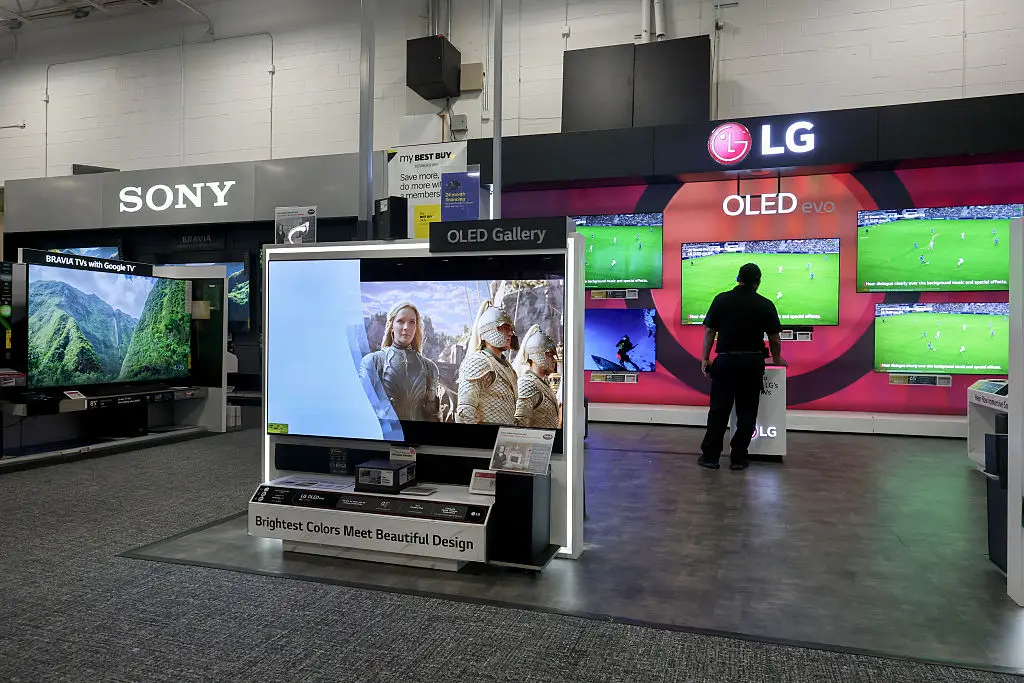
It might take a little while to get used to the warmer palette of cinema or even standard profiles if you're used to vivid, but it's far more likely to be how the image is supposed to look, and any sacrifice in brightness is more than worth it for a superior viewing experience. You can always close some curtains after all.
Selecting your picture mode
Somewhat linked to the vivid conversation though is the general process of selecting the right picture mode, as this can make or break how everything looks when watching your TV after all.
Looking up guides specific to your TV model is the best course of action as this can help you tweak settings that are related to your panel, yet opting for either 'Standard' or 'Cinema' modes are generally safe bets and then adding small tweaks yourself afterwards to fine tune the experience.
You might also want to tailor your experience to use cases like gaming or watching sports if you do that exclusively on the TV, as these can sometimes provide more accurate and beneficial colors or response times that benefit the experience — but it's still worth playing around to see what works best for you.
Contrast
Finally, the last key setting you'll want to have a play around with is contrast, as having it set too high – something a lot of TVs have by default – can lead to a blown out and 'muddy' image.
This very much depends on the type of panel you have as you might need to add a little more contrast for a 'cheaper' model, but you want to avoid going too far as this can lead to an image that's stripped of detail.
Try and find a test image with dark blacks and bright whites – there's plenty available on YouTube – as this will help you adjust with the extremes to find the best of both worlds, making even a less expensive TV feel like it's top of the range.