Simple way to check if your iPhone has been hacked is seriously putting users at ease


It's always frightening if you suspect that your iPhone has been hacked or compromised, but thankfully there are a number of checks and protective measures you can take advantage of to put yourself at ease in this situation.
While the cybersecurity credentials within the latest smartphones are stronger than they've ever been, there are still exploits and vulnerabilities that hackers and cybercriminals can take advantage of to access your device.
This could be due to your own doing – by clicking on a dodgy link or entering your account information somewhere you shouldn't – or you could even be left compromised after using an otherwise innocuous USB cable as one ethical hacker reveals.
Regardless of how you got hacked though the important thing is to figure out whether you can fix it, and thankfully one tech expert has come to the rescue to provide all the information you'll need to tackle the problem.
Advert
As shared by Supercar Blondie, IT software company Tenorshare has their own YouTube channel where they share various tech tips and tricks, with one of the most popular videos explaining how to deal with a hacked iPhone.
One of the most important things it covers first and foremost is the instances that might lead you to believe that you've been hacked but are actually an elaborate trap set by hackers in waiting.
This often manifests itself as a warning when you're browsing the web, where it'll tell you that your iPhone has been hacked, prompting you to click through to solve the issue.
You'll then end up actually being hacked by doing this, yet there won't be any warning signs when the real thing happens. First and foremost your iPhone will never explicitly tell you that you've been hacked, so you can ignore any messages that might pop up suggesting this.
Next, you'll want to head into your settings, Safari, and then enable the 'Block Pop-ups' setting to prevent this from happening again.
You might also have noticed that your iPhone's calendar has a lot of unexpected and unexplained entries, but this also isn't a likely sign that you've been hacked, and instead you have probably accidentally subscribed to something while browsing the web.
To check if this is the case, head back into your settings, then Calendar, then Accounts, and finally Subscribed Calendars, and remove any that you don't want or didn't know you'd enabled.
Now getting on to the actual 'hacking' incidents, if you have encountered someone trying to access your iPhone remotely or any attempts to sign into your iCloud, you'll want to check and remove any devices from the account that you don't recognize.
Click your name at the top of the settings menu, then there should be a list of devices when you scroll down below. To remove one, simply click on it and then select 'Remove from Account'.
You'll also want to change the password associated with your iCloud account and enable Two Factor Authentication if you haven't yet already, as these will keep everything as secure as it possibly can be — just make sure to use a unique password wherever possible!
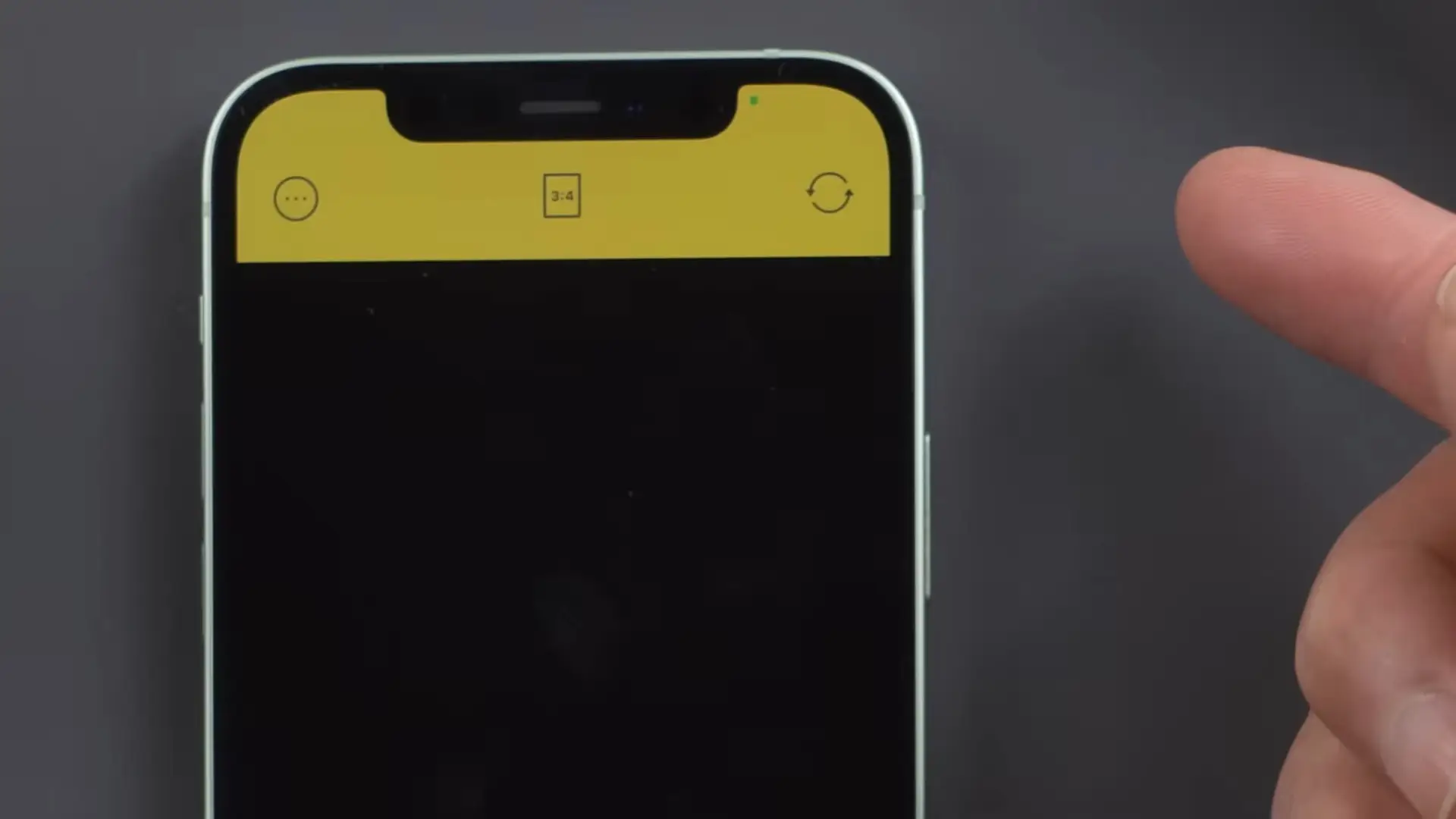
Another concerning detail that leads many to wonder if their iPhone has been hacked is the green dot present at the top of the screen. This means that your camera or microphone is being accessed by an app, and even if you've not been hacked you'll likely want to disable this.
Head into settings once again, then Privacy, and then either Camera or Microphone and check the apps that you've enabled permissions for, disabling them if they're not essential.
One last thing that you can do is perform a forced restart of your device, as this is effectively a reset that should hopefully kick out any hackers or suspicious programs still hanging around.
This is a little more complex than just turning off your iPhone, but all you need to do is quickly press and release the volume up button, the volume down button, and then press and hold the power button until the Apple logo appears.