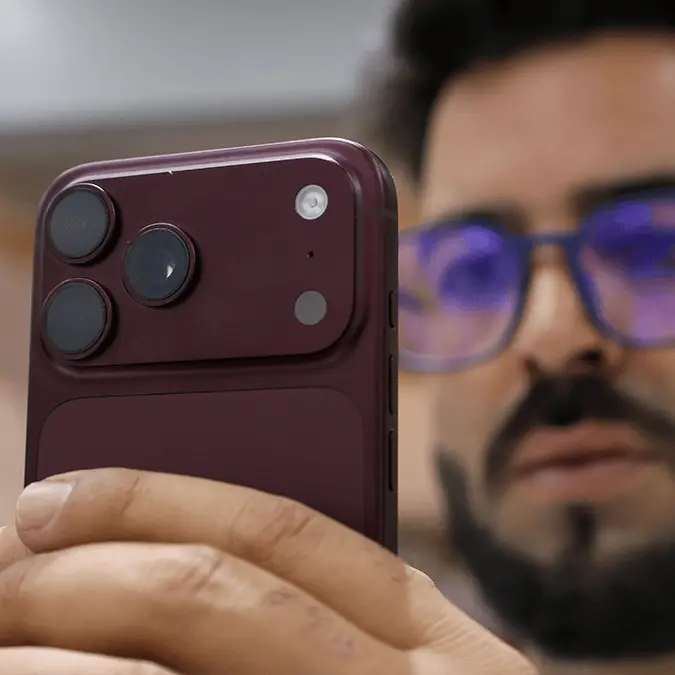
Your iPhone has a built-in eye tracker that turns your gaze into a mouse pointer - Here’s how to activate it


Accessibility features are vital to ensure that as many people as possible can use and enjoy their iPhone, and there's even a tool that lets you control your device with just your gaze.
Referred to as Eye Tracking, this specific accessibility feature allows you move the screen, click on things, and use your phone as anyone else would with just your eyes, freeing up your hands and fingers in the process.
While this might come in handy for some extreme multi-tasking activities, it's an essential tool and feature for those who either struggle with or have lost the ability to use their hands, ensuring that they have an uncompromising experience.
It's just one of countless accessibility features available through iOS, with Apple providing tools for everyone to make the experience as user-friendly as possible, no matter your current situation.
How to use Eye Tracking on iPhone
One thing to make sure of is that your front camera is both clean and unobscured whenever you attempt to use the eye tracking features on your iPhone, as the software obviously needs the best possible picture to produce accurate and reliable results.
Advert
Apple recommends placing the camera so that it has a clear view of your face with adequate lighting, situated around a foot and a half away from yourself and on a stable surface too.
Once you've set that all up, follow the steps listed below to get Eye Tracking set up on your iPhone:
- Open the Settings app, and head into Accessibility
- Find the Eye Tracking option, and then toggle Eye Tracking at the top
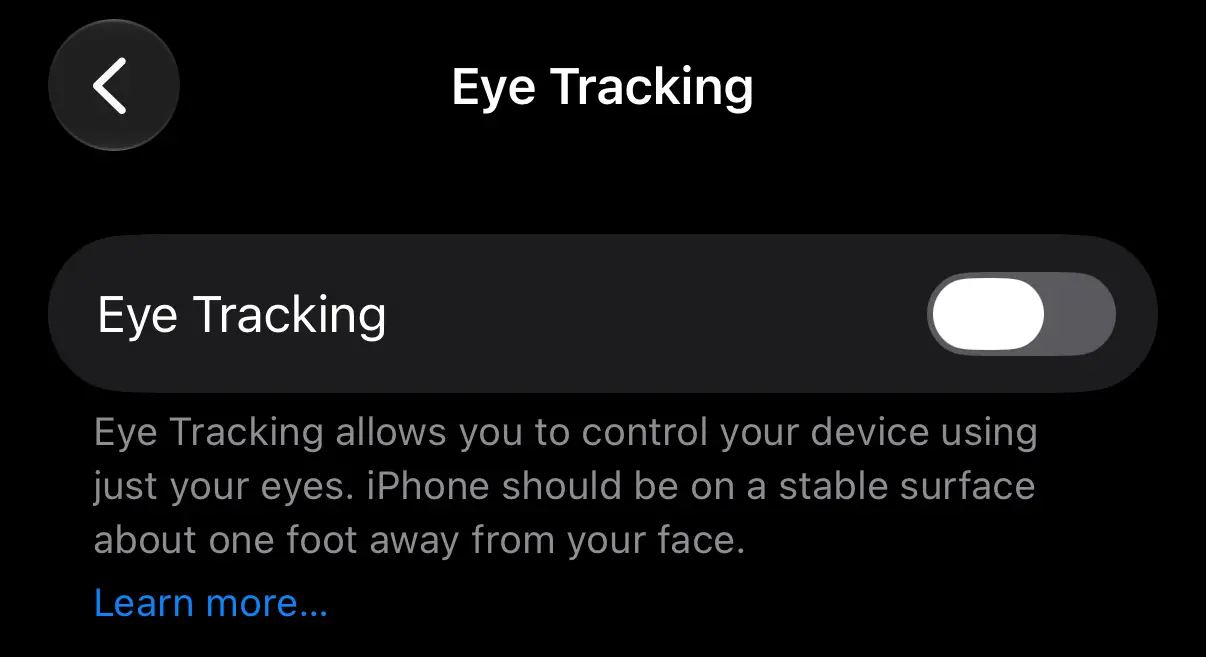
After you've activated it a short set-up process will be enabled, where you'll see a preview of your face and directions for setting up the camera. It will guide you through the process, and once you're in the right place you'll have to calibrate the feature.
This involves looking at around 11 different points across the screen for a couple of seconds, but once that's out the way the feature will be ready to use — and it's both reliable and accurate after just a short amount of testing!
What other accessibility features are there?
While Eye Tracking remains one of the stand out accessibility features available for iPhone users, there are countless other tools that you can take advantage of to make your experience using the device more comfortable.
One of my favorites is the option to enable Vehicle Motion Cues, which enables moving dots across the screen automatically whenever you're in a car, completely negating and motion or travel sickness when looking at the phone.
You can also turn on tried and tested VoiceOver features which narrate all of the items on the screen for those who might struggle to see, and countless other hearing assistance tools too.
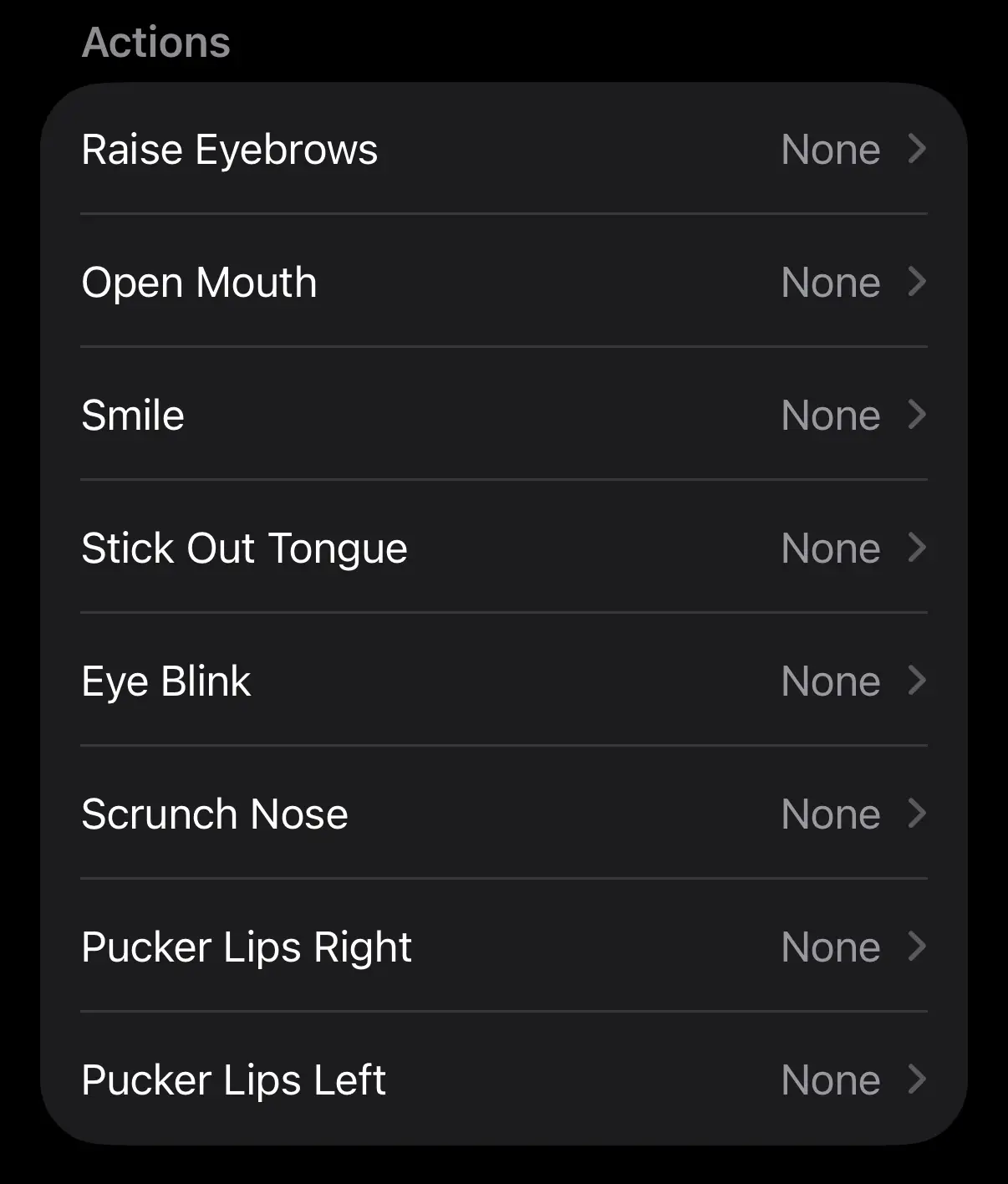
Another fascinating one is the ability to turn on Head Tracking, which arguably improves on the Eye Tracking features by adding in a number of contextual gestures for enhanced control.
Not only can you control a pointer by simply moving your head, but you can also also assign actions to movements like blinking, opening your mouth, scrunching your nose, or sticking out your tongue.