Adjusting these 4 Samsung camera settings will transform how you take photos


One of the biggest reasons why people often opt for a new phone is to have a better camera, yet you might not be taking advantage of game-changing settings already available within your Samsung device that could transform how you take photos.
When it comes to flagship smartphones few can compete with Samsung when it comes to photography, as the quality of the sensor alongside the flexibility of the lenses offers near unparalleled results.
We've all seen those videos on social media where people zoom into an artist from a concert's nosebleed seats only to make it seem like they're in the front row, making everyone envy the gadget that's more often than not a Samsung phone.
There's a good chance you're still not getting the best out of your device's photographic output, however, as there are a number of hidden yet essential settings you should be aware of that will definitely help you up your game.
Advert
Changing the megapixel count
As reported by BGR, by far the biggest and most transformative of these settings actually relates to the quality of your shots, as even with the most expensive devices you're not getting what you've paid for out of the box.
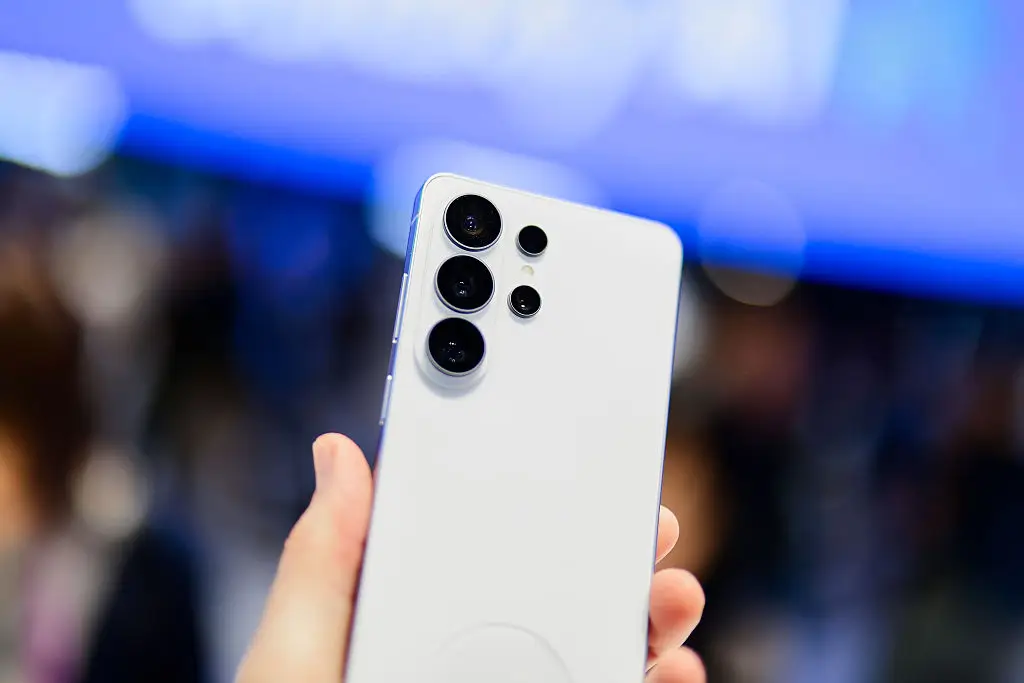
Flagship devices like the Galaxy Z Fold 7 and S26 Ultra have the capacity to go up to 200 megapixels for the main sensor, yet there's a good chance that it's set to just 12 megapixels by default.
This is presumably to save space and processing power on your device, yet if you've paid all that money you'll want to take advantage of everything your gadget has to offer.
To do this, you'll want to open the camera app and select the icon that should say '12M' in the top right. This will bring up options for 50M (50 megapixels) and 200M (200 megapixels), and you're best served going for the latter unless you're struggling for space.
Unfortunately changing it through this method isn't permanent and resets any time you close the app, so you'll want to then head into the menu by pressing the icon that's four dots making up a square in the bottom right.
From here, scroll down until you reach the 'Settings to keep' section, and then pick your desired megapixel count in the 'High picture resolutions' toggle.
Adjusting the exposure
Another key setting that can completely change how your photos look for the better is exposure control, especially as phones these days often lean towards overexposure to make sure that everything is visible in the frame.
If you're unaware, exposure relates to the amount of light that a camera's sensor receives at any one time, and this can change based on the aperture of the lens, your current ISO, and the shutter speed.
Phones, however, allow you to adjust the exposure independently and on the fly, allowing you to brighten up darker scenes or tone down any shots that might have a little too much light.
To do this, open the menu via the four-dot square once again, and scroll until you find the plus or minus icon in a circle. Opening this will allow you to adjust the exposure, so play around with it to see what looks best for your photos.
Taking advantage of pro settings
If you want to really go all out, however, you'll want to head into the Pro mode within the Samsung camera app, as this lets you use your phone as if it was a digital camera with far more flexibility.
It's not something that is recommended unless you're already familiar with cameras and how they work, but it could also prove to be a gateway into more serious photography without having to fork out for an additional device.
This mode gives you full manual control of the image, letting you adjust the ISO, shutter speed, exposure compensation, focus style, and even the color temperature of the image before you take the snap.
It's definitely the place to go if you want to take the best photos possible, but it'll definitely take some time getting used to and isn't great for when you want to take a quick snap.