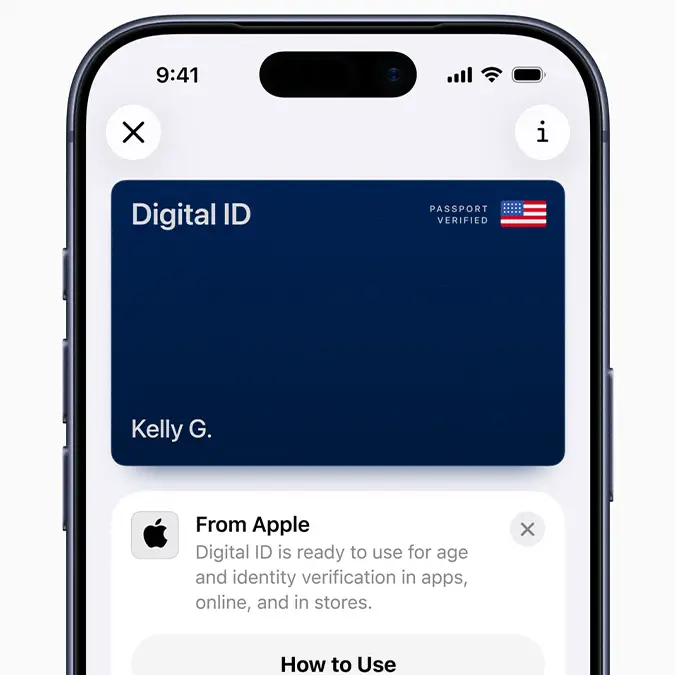
Everywhere you'll be able to actually use Apple Wallet's latest Digital ID


Apple has announced a new update for its Wallet app that will change how you travel.
The tech company launched its Digital ID on Wednesday, described as ‘a new way for users to create an ID in Apple Wallet using information from their U.S. passport, and present it with the security and privacy of iPhone or Apple Watch’.
This means travelers will be able to digitize their passports, or eligible driver’s license information. However, the new function is not a replacement for a physical passport, however users can securely store and present their identity using their iPhone or Apple Watch.
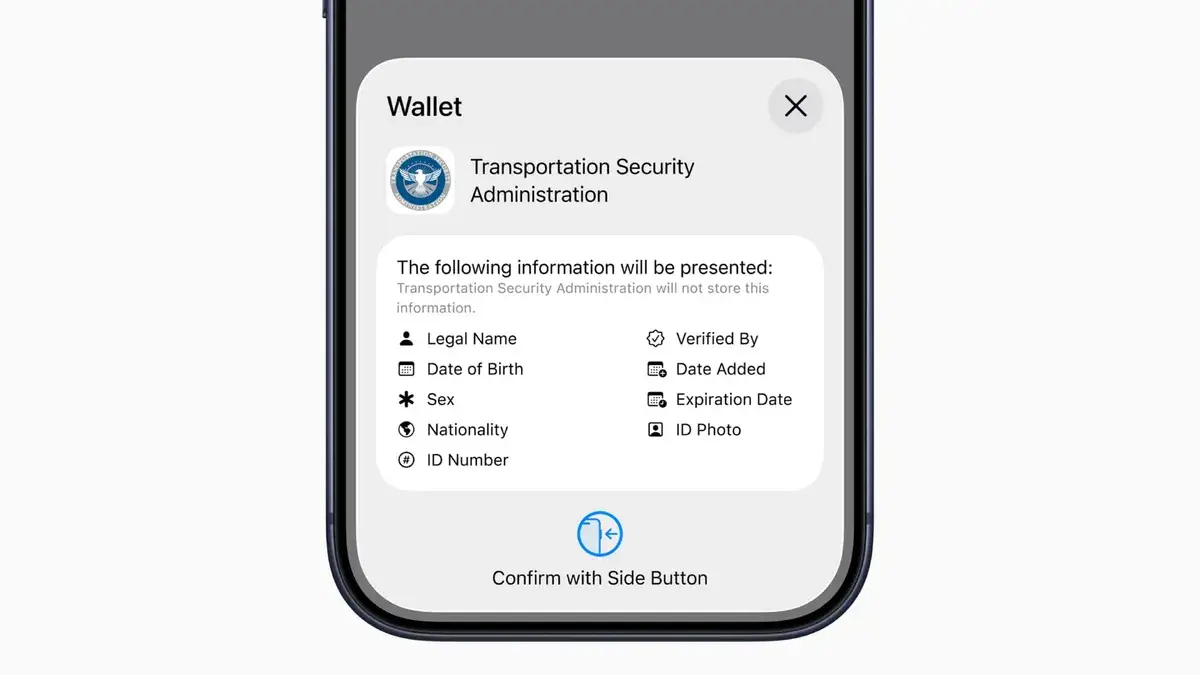
According to Apple, Digital ID is live in 12 states and Puerto Rico and will first be rolled out in beta at TSA checkpoints at more than 250 airports in the U.S. for identity verification for domestic travel. However, Digital ID is planned to be more widely available in the future.
Advert
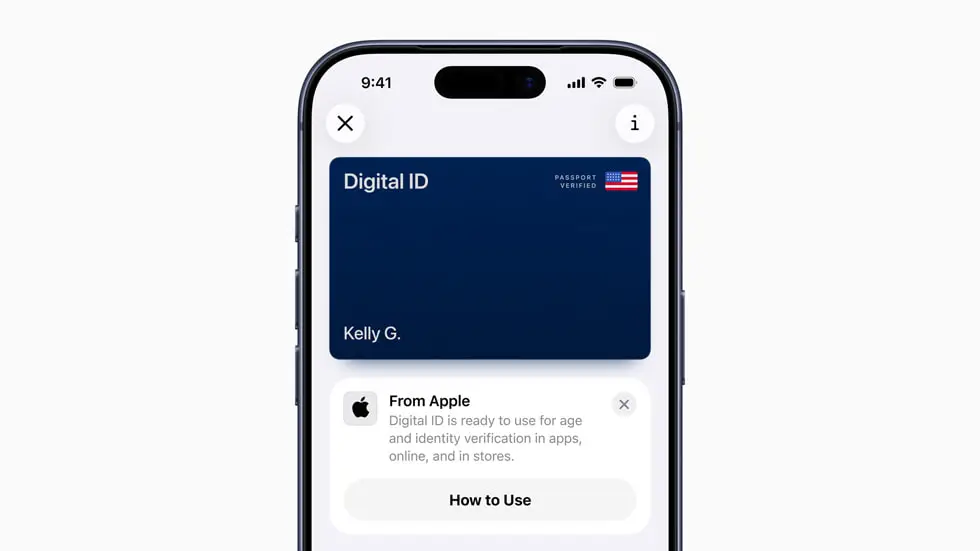
How does Digital ID work and where can you use it?
Digital ID can be found in Apple’s Wallet app, which means you swiftly open it by double-clicking the side button on your phone.
You can use your Digital ID without unlocking your iPhone, and you’ll have the chance to review all the details shared with TSA agents before confirming. The entire process is protected by Face ID or Touch ID for added security.
Apple wants to give users another way to verify your identity at U.S. airports, without you needing to take out your physical passport. Eventually you’ll be able to use it online for age verification and ID.
Can you use Digital ID for international travel?
No, not at the moment. Apple says it “cannot be used for international travel and border crossing in lieu of a U.S. passport”.
Is Digital ID safe?
Apple emphasizes that your Digital ID is fully encrypted. Your passport information is stored locally on your device, not in the cloud, and Apple “cannot see when and where users present their ID, or what data was presented.”
How to create Digital ID
Open the Wallet app and tap the + button at the top of the screen. Select either Driver’s License or ID Card, then choose Digital ID and follow the on-screen prompts.
Next, use your iPhone’s camera to scan the photo page of your passport and the chip embedded on the back. You’ll then take a selfie for verification. Once that has been completed, you’ll be asked to “complete a series of facial and head movements,” similar to the process for setting up Face ID on your iPhone. Once that step is finished, voila, your Digital ID will be added to your Wallet.