Little-known ChatGPT hack can transform how you send iMessage and WhatsApp messages


OpenAI has introduced a little-known new feature that could transform your chats, as you're now able to use ChatGPT to create custom stickers from any image on your phone, even extending that into different styles.
Words often aren't enough when you're chatting away with your friends or family, and that's why so many love sharing emojis, reaction images, and memes to convey their thoughts and feelings.
That's why ChatGPT has introduced a new custom sticker function to help give you new ways of expressing yourself on platforms like WhatsApp or iMessage on Apple devices, yet not that many people actually know that it exists.
While these platforms do already offer the ability to create custom stickers, it exists in a relatively limited capacity and can sometimes leaving you looking for more in your chats.
Advert
That's why it's might be worth experimenting with the new feature from the leading AI company, and it only takes a few steps in order to set up.
How to create stickers using ChatGPT
As shared by Digital Trends, you first want to head into the ChatGPT app on your iPhone and navigate to the 'Images' section after opening the side bar.
From here, you'll want to clic on the 'Stickers' section, where you'll then be able to upload either a single photo or a collection if you want to do a grouped sticker pack all in the same style.
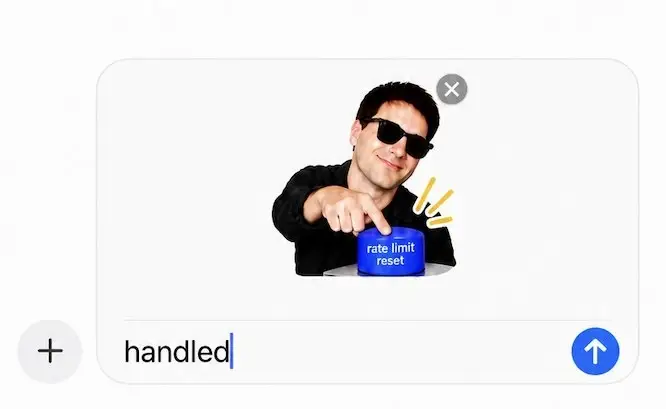
You can choose from a number of different styles which will change the look of your images, including 3D, hand-drawn, chibi, meme, and pixel art, alongside the ability to 'remix' it with different themes and elements to add to the sticker once it has been generated.
Naturally for most stickers you'll also want to create a transparent background for that signature look – making it easy and natural to share with your friends in your messages – but you can also remove any other elements that you don't want to be present in the final product.
How to add ChatGPT stickers to your messages
Once the sticker or collection of stickers has been generated you'll then be able to save it directly to your favorite messaging app for future use, and you can do that by following these steps:
- Generate the stickers until you're happy with your result
- Select the 'Add to chat apps' button
- Select which app you want to add it to, with options for WhatsApp, iMessage, or the Photos app

You will need to have at least three stickers ready in order to add it directly to WhatsApp, however, so if you're only wanting one it might be best to save it to your photos and either add it manually or send it as an image.
If you wanted to access any older stickers that you've added to your app of choice through ChatGPT, simply open up the keyboard, press the sticker button to the right on WhatsApp, or the '+' button on iMessage, and they should be there to select either through the ChatGPT tab or at the top of the menu.