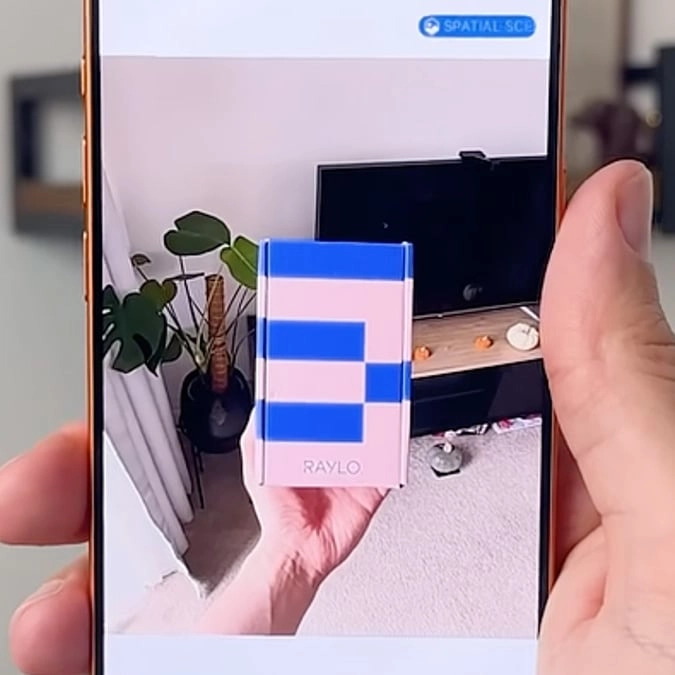
iPhone users amazed at little-known hack that instantly transforms pics to look 3D


iPhone users have been left amazed at a little known hack which instantly transforms their photos to appear to be 3D.
This comes after a video was uploaded to the YouTube channel Raylo, which is a tech subscription service, that details some features on the iPhone 12 and newer with iOS 26+ you may not be aware of, with the first tip leaving a lot of users surprised.
In the clip, it explains: “Here are five iPhone 17 tricks I bet you didn’t know. Open your photos app. Pick a favorite picture and tap the icon in the top right. Instantly, your photo becomes 3D. “This works on any photo taken on the 17 Pro and even some images you find online. You can also use this effect on your lock screen for added depth.”
Many people took to the YouTube comment section to share their reactions to the information, with one user writing: “Had no idea about the 3D pics, thank you for the info!”
Another said: “Just download iOS 26.”
Advert
And a third person added: “The photos have to be freshly taken by your camera, but if you have photos that was taken by another person’s iPhone you can change it to 3D, and it goes back to the original.”
The video goes on to share more handy features available for Apple fans, saying: “Go to settings, battery, power mode, and turn on adaptive power. This feature uses Apple intelligence to learn your usage patterns and make small adjustments, helping your phone's battery last longer throughout the day. Hold down your home screen until the app shake.
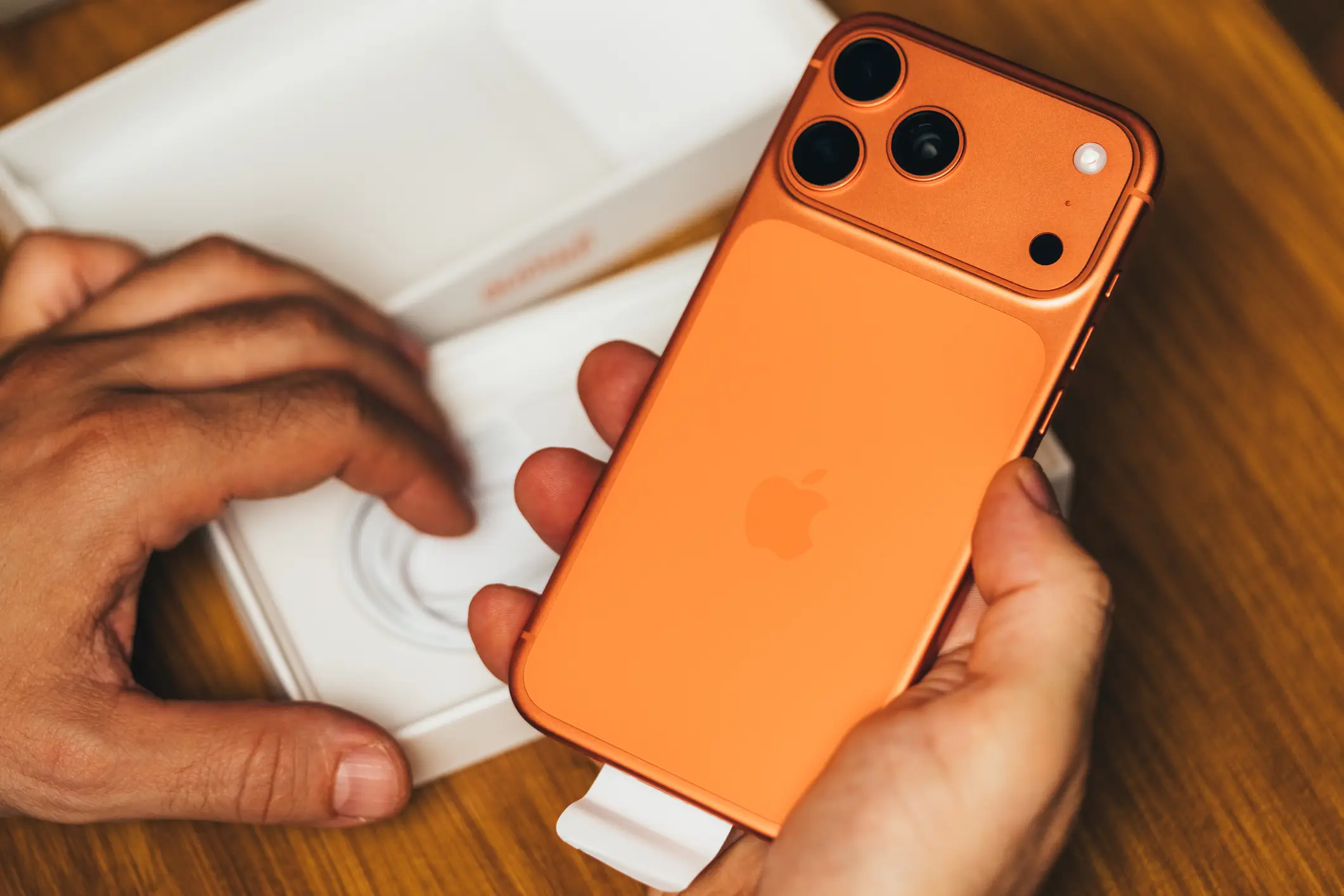
“Then select edit and customize. You can now resize apps with no text and choose from four icon styles: default, dark, clear, and tinted. Tinted gives you even more options, matching the color of your phone, your Apple case, your wallpaper, or letting you pick a specific color from your wallpaper.
“In the camera app, switch to video and tap the icons in the top right. Select dual capture to open both your selfie and rear cameras. You can now record with both at the same time and even move the selfie window around, though it will appear in the video if you're recording.
“After setting your wallpaper, tap the clock and select the first option. You can now drag to resize and reposition it. If you then use photoshuffle on your wallpaper, the clock will automatically adjust to fit each background.”