iPhone user shares quick settings change that fixes 'clumsy' keyboard typos by 80%


An iPhone user has uncovered a little-known hack which could solve a common problem keen texters might have with their device.
The discovery was shared by the Apple fan online which details a small settings change you can make to fix a ‘clumsy’ keyboard issue that many iPhone users struggle with.
According to the user, who took to social media to share their experience, the trick can solve typos by up to ‘80%’.
On Reddit, they wrote: “For anyone experiencing clumsy typing (especially if you’re a fast typer) Try turning off character preview, 80% increase in better typing.
Advert
“It goes without saying: it won’t fix all typos but will DRASTICALLY reduce the amount. If you’re like me rapid typing, fingers first brain second, then you’ll see a major improvement.”
This prompted others to reply in the comment section, with one user saying: “i can’t tell if it’s placebo or real. seems like character previews should have nothing to do with accuracy…”
Another commented: “This has actually helped. I’m legit surprised. Didn’t expect it to make it any better.”
And a third person added: “I just did it and already love it lol.”
How to turn off Character Preview on the iPhone
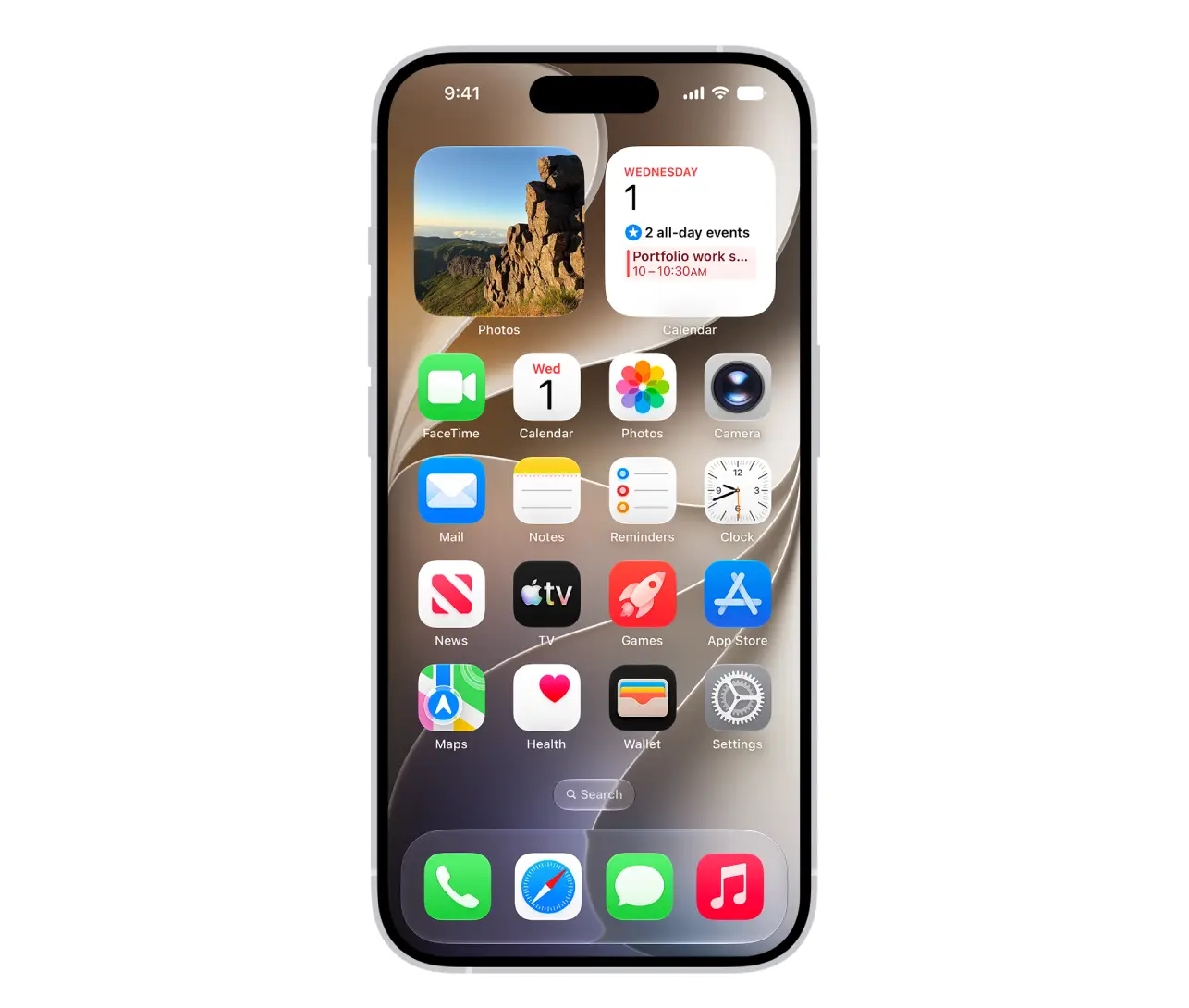
If you want to try out the trick for yourself then all you need to do is first head to the Settings app, followed by General and then Keyboard. From there, you should see the option to turn off Character Preview.
Make sure the toggle is off to try out the tip provided by the Reddit user.
Easy trick for freeing up iPhone space
Another simple hack for the iPhone involves a method to quickly free up space on your phone without having to painstakingly go through each individual image to delete on your camera roll.
Instead, there is an easier way to free up space on your device, as it could be worth checking your Messages app.
That is because text conversations can contain far more than just texts, with the likes of photos, videos, GIFs, screenshots and other files being sent back and forth all remaining stored on your iPhone, even if you never deliberately saved them.

If you’ve kept the same conversations going for months or even years, those attachments can start taking up a surprising amount of space, but luckily, there is a built-in Apple tool which can help you find them.
All you need to do is head to Settings on your device, followed by General and then iPhone Storage.
From there, you can look under recommendations where you should see Review Large Attachments. Clicking on this will bring up all of the large attachments you have stored in Messages.
You also might see photos you have duplicates of, screenshots and other files you no longer need on your phone.
If something comes up that you want to delete, then all you need to do is swipe left, or you can click Edit and select multiple attachments at once before hitting the delete icon.