This common phone habit could be costing you serious iPhone storage without your knowledge


If you keep getting a warning on your iPhone screen that its storage is nearly full there could actually be a little-known fix that is simple to do.
Despite the common culprit often being your camera roll, it might not be time efficient to go through your thousands of pics to find ones you can delete.
Instead, there is an easier way to free up space on your device, as there could be another place worth checking that can quietly build up gigabytes of unnecessary data over time - your Messages app.
That is because text conversations can contain far more than just texts, with the likes of photos, videos, GIFs, screenshots and other files being sent back and forth all remaining stored on your iPhone, even if you never deliberately saved them.
Advert
If you’ve kept the same conversations going for months or even years, those attachments can start taking up a surprising amount of space, but luckily, there is a built-in Apple tool which can help you find them.
How to free up iPhone storage from old messages
It could be that sharing screenshots and other files over text could be costing you some serious phone storage. But don’t panic, you don’t need to delete entire conversations in order to rescue some of your lost storage because instead, your iPhone can locate the largest attachments that are taking up space in the Messages app.
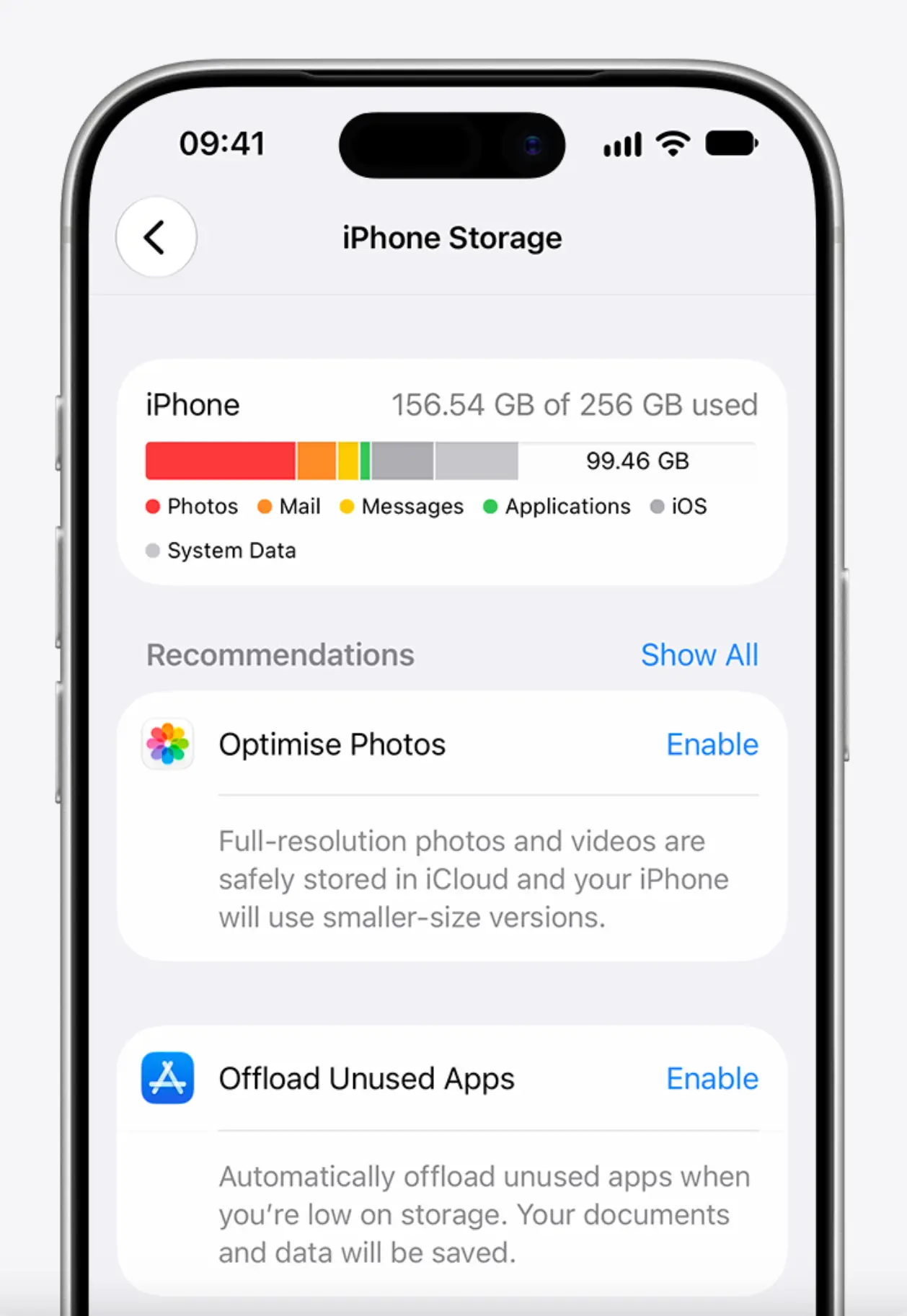
If you want to try out the feature for yourself then all you need to do is head to Settings on your device, followed by General and then iPhone Storage.
From there, you can look under recommendations where you should see Review Large Attachments. Clicking on this will bring up all of the large attachments you have stored in Messages.
You also might see photos you have duplicates of, screenshots and other files you no longer need on your phone.

If something comes up that you want to delete, then all you need to do is swipe left, or you can click Edit and select multiple attachments at once before hitting the delete icon.
Back up your storage on iCloud
If you’re still struggling to find files to free up some space then Apple as an alternative solution by making the most of iCloud.
Apple explains: “By default, your photos and videos are stored on your device in their original, high-resolution version. This means they use a lot of space on your iPhone and iPad. When you use iCloud Photos, Optimise Storage is on by default, allowing you to make more space available on your device and still have access to your entire full-resolution collection wherever you go.”
To enable this, go to Settings and select your name, before clicking iCloud and then Photos. Turn on Sync This iPhone. For iOS 27, tap iPhone Storage.