Apple user baffled after noticing how NSFW site appears in screen time


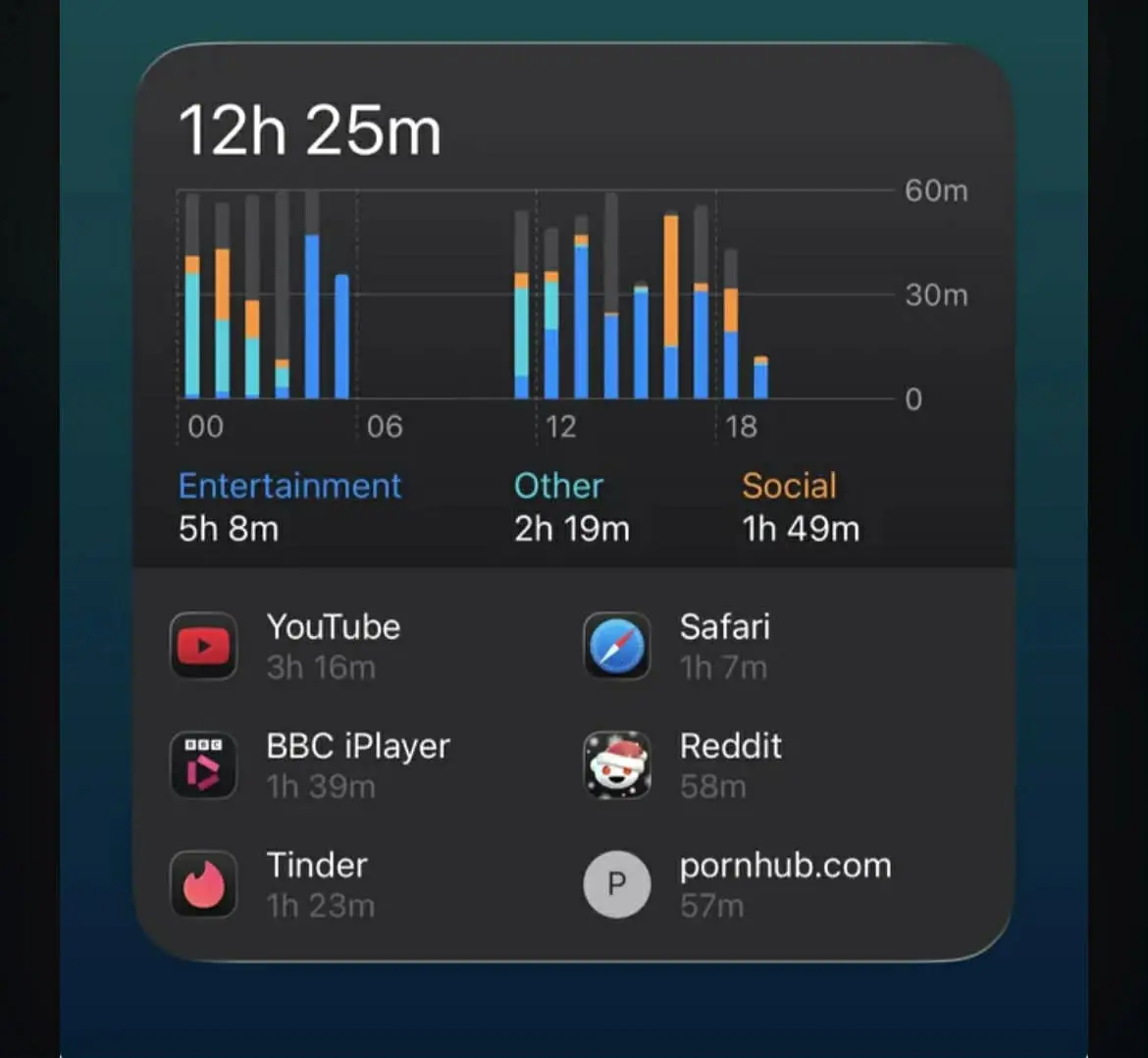
One Apple user has been left baffled after they noticed how a NSFW site appears in the Screen Time feature.
The handy feature enables Apple fans to gain insight into how much time they are spending on their devices - and what apps and websites they are using most.
On the website, it details how you can also ‘schedule time away from the screen and set limits for yourself or a child in your Family Sharing group’.
Once Screen Time has been set up on your iPhone, you will be able to view a report which details the device usage.
Advert
This shows you ‘how much time you or your child spend using apps and websites, how often you pick up your devices, what apps send you the most notifications and more’.
The site goes on to say: “If you have Share Across Devices turned on, you can view overall usage across all of the devices that are signed in to your Apple Account. If you can’t see a Screen Time report, you may need to use the device for longer in order for Screen Time to capture enough activity for a report.”
However, one user was baffled and took to social media to share their surprise when they noticed how one particularly NSFW website appeared in the feature.
On Reddit, they said: “Why does PH not come under safari?”
This prompted a reply from another who wrote: “Uhmm try using private mode?”
A third person commented: “It has always done that. But it doesn’t do it if you are on anonymous mode.”
And a fourth added: “I’m not sure why people are confused, websites have always shown up individually instead of showing time on safari. That’s why it says “App & Website Activity”. Who knows maybe we both have some random setting enabled.”
How to set up Screen Time on an Apple device
In order to enable the feature, first you’ll need to open the Settings app followed by Screen Time.
From there, click on App & Website Activity and then select to turn on App & Website Activity.
After doing this, you will be able to view reports going forward that detail your usage of the device.
In the Settings, you can select to view a week or day summary of the usage.
Meanwhile, under Most Used, simply click on an app or website to find more details, or add and edit limits.